Your Email Links Automatically Show Up In Google Analytics
By Dave Stys July 7, 2026
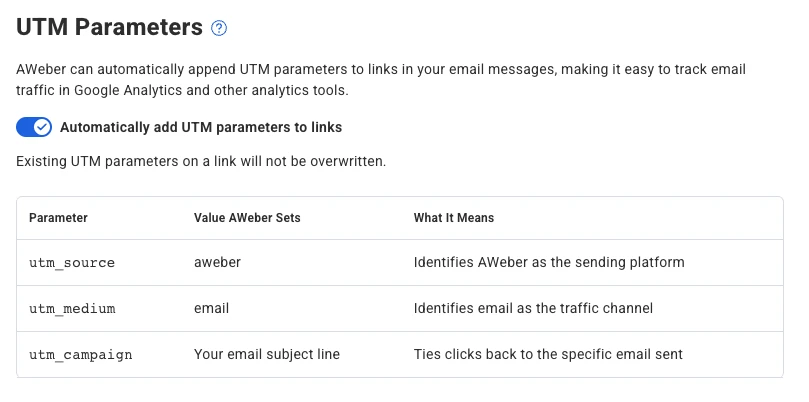
Send an email, get a click, make a sale. Now you can trace that sale back to the exact subject line that started it. AWeber automatically tags every link in every email with UTM parameters before your email goes out. Open Google Analytics and the data’s already waiting for you.
No manual setup.
Every link gets tagged automatically
AWeber adds three UTM parameters to every link at send time.
- utm_source is set to
aweber - utm_medium is set to
email - utm_campaign is set to your email’s subject line
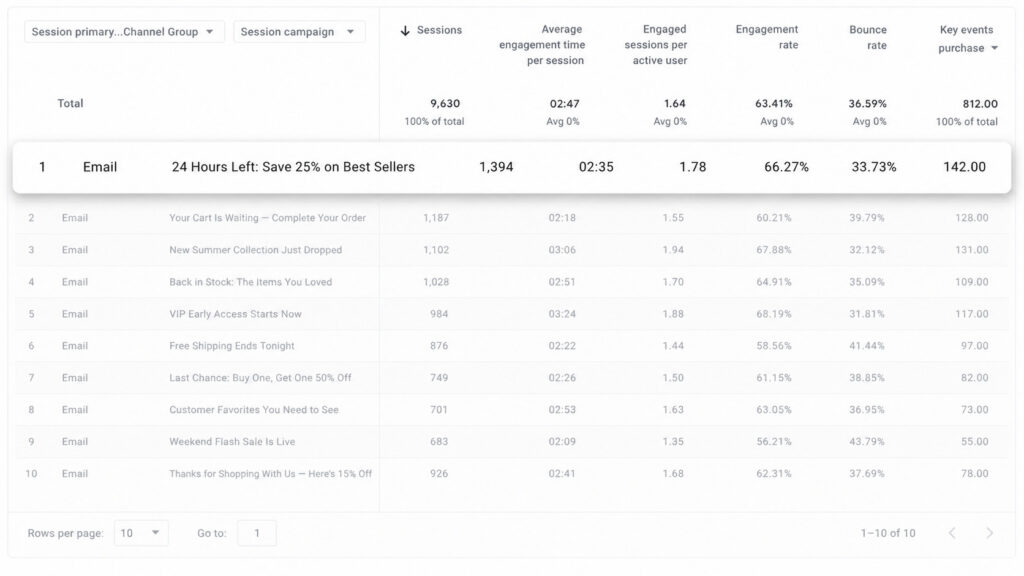
Each email gets its own campaign label in Google Analytics, named after its subject line. You can compare performance across sends without touching a single URL.
Already adding your own parameters? Yours stay put
AWeber detects existing UTM parameters and leaves them alone. If you’ve already tagged a link with your own campaign values, AWeber won’t overwrite them. Your custom tracking stays intact.
See which emails actually move people to buy
In Google Analytics, go to Acquisition > Traffic acquisition and filter by source/medium (aweber / email). Every email shows up as its own campaign.
Pull your last several sends. You’ll see which messages drove traffic, which drove conversions, and which fell flat.
Turn it on or off from your list settings
This feature is on by default for every AWeber account. To adjust it for a specific list:
- Log in and go to your List Settings page
- Find the UTM Tracking toggle
- Flip it on or off
The setting takes effect on your next send.