Draft, Send, and Analyze. All From ChatGPT
By Chris Vasquez June 17, 2026
AWeber is one of the first email marketing tools in the ChatGPT App Marketplace.
That means you can draft your next broadcast, check how your content is performing, and learn about your audience right inside of a ChatGPT conversation.
The results you get won’t just be a wall of text: you’ll get interactive charts, profiles, and tables that make the story behind your data simpler to understand and act upon.
As Easy as Hitting “Connect”
Connect your account in just a few clicks. No Developer Mode, no admin permissions, none of the custom connector setup you need with other tools.
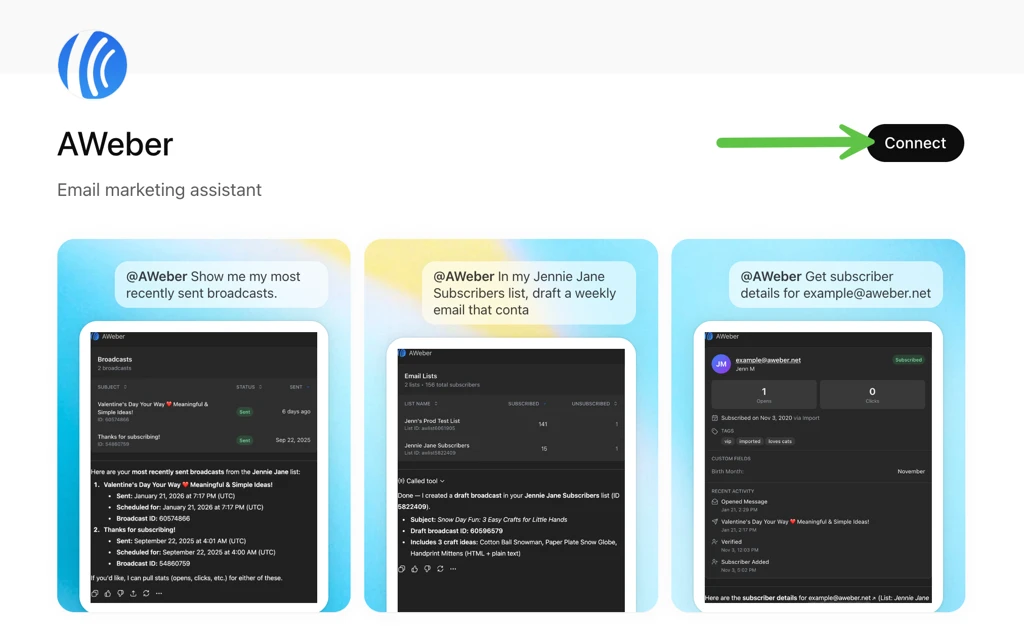
Ask ChatGPT anything about your email marketing
The AWeber app for ChatGPT puts your entire email marketing operation inside the AI assistant you’re already using.
Ask it things like:
- “Show me details on my last broadcast to [list name].”
- “Give me details about [email address] on [list name].”
- “Draft a newsletter for my [list name] list about [topic] using the same tone as my recent broadcasts.”
- “Add [email] to my [list name] list with tags X and Y.”
- “Who are my most recently subscribed contacts on my [list name] list?”
- “How many subscribers do I have across my lists?”
ChatGPT pulls your actual data to answer. It knows your lists, your contacts, your broadcast history.
Here’s what makes this different: visual widgets inside the chat
This is where AWeber in ChatGPT stands apart from the typical “plug your email tool into chat” integration. While most other email platforms just dump raw data into the conversation (if they even let you connect at all), we built interactive visual widgets that make it simple to view and act right through chat:
1. Get Lists: a table view of all your lists
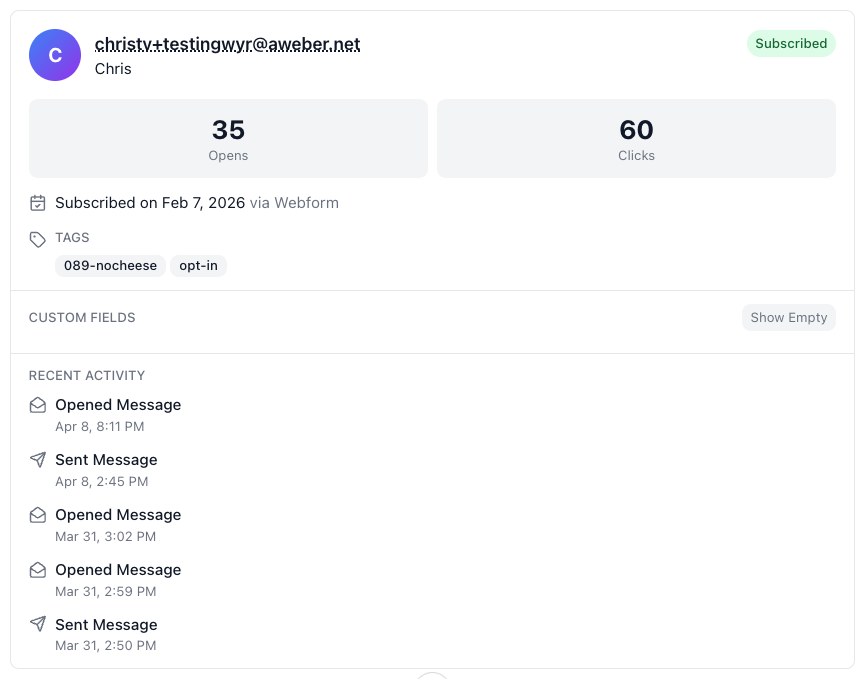
2. Get Subscriber: a subscriber details card with engagement history
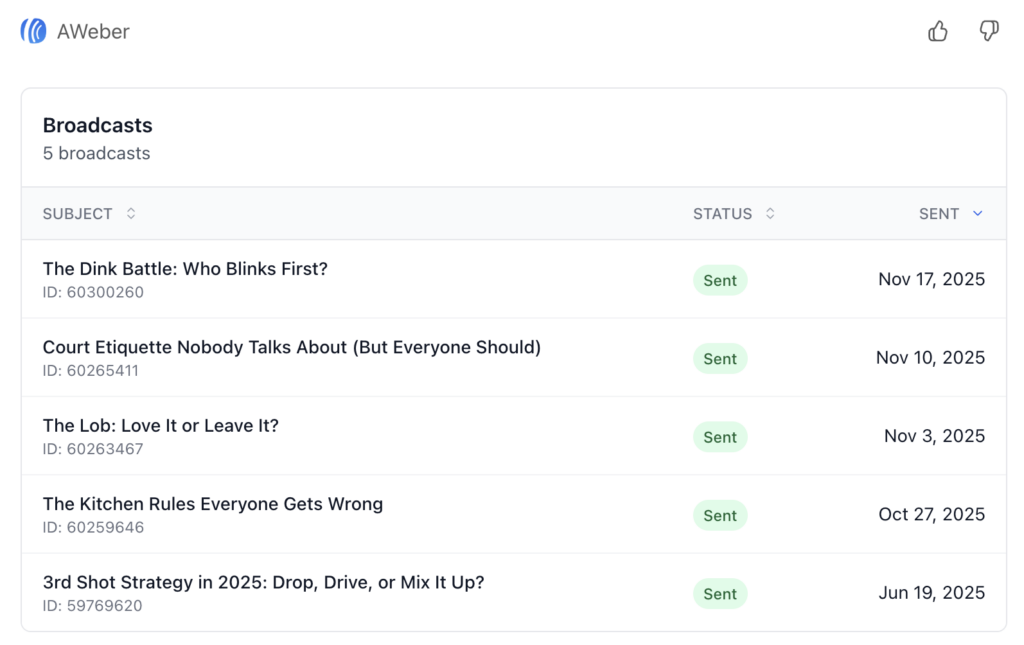
3. Get Broadcasts: a scannable list of sent broadcasts
4. Get Broadcast Stats: performance stats and a graph of engagement for a specific broadcast
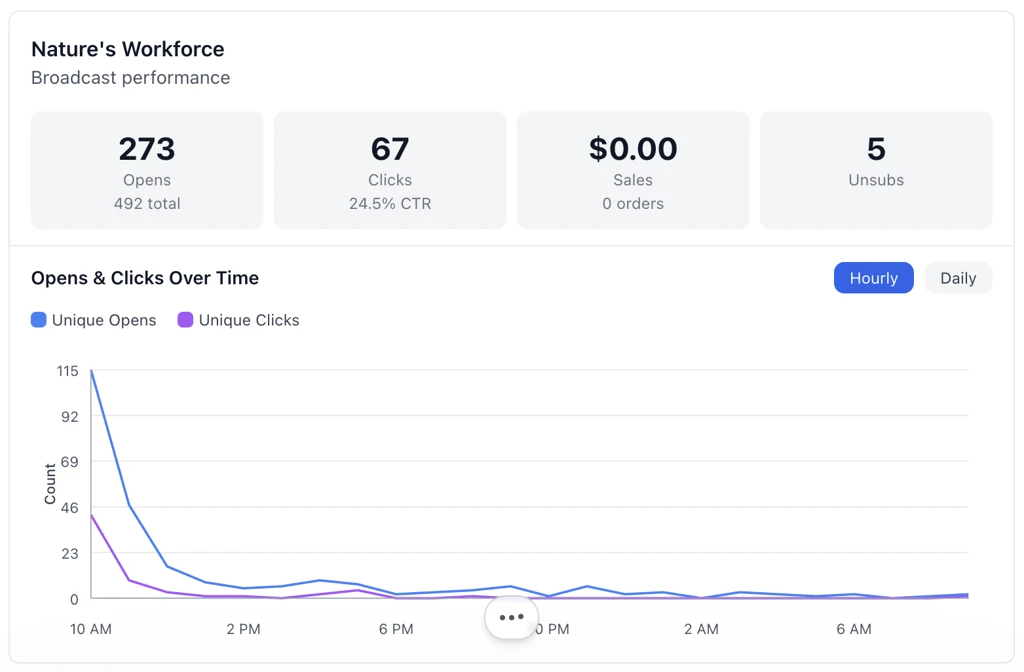
Instead of staring at rows of data, you get a clear picture of what’s working.
Email analytics that go beyond what most platforms show
Ask ChatGPT how your recent emails performed and you get back a full analytical picture:
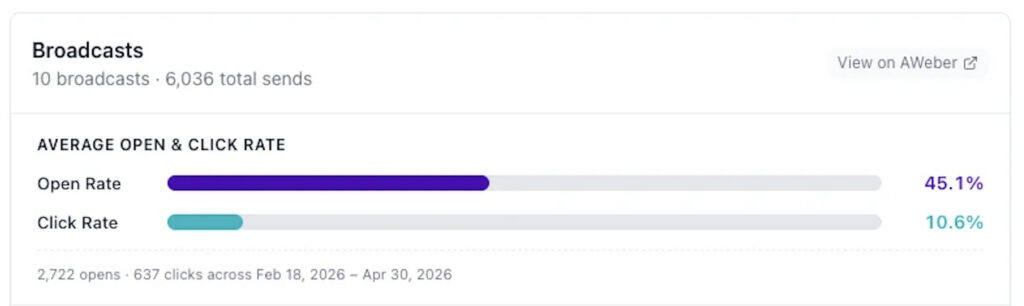
Average open and click rates across every message in the range you asked about, whether that’s timeframe-based (“last 2 months”) or count-based (“last 10 broadcasts”)
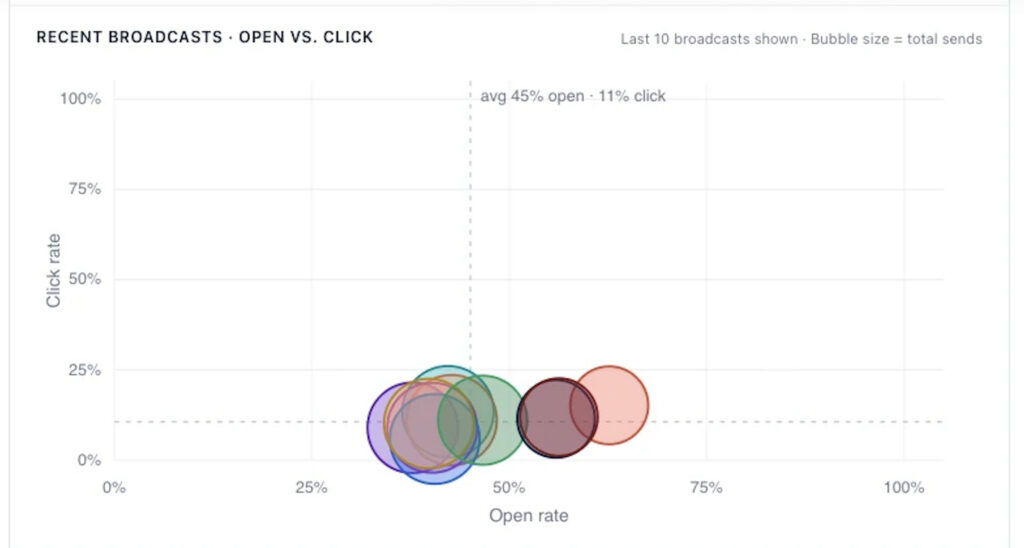
A scatter chart plotting your 10 most recent broadcasts by open rate and click rate, with bubble size showing send volume. Outliers become obvious at a glance.
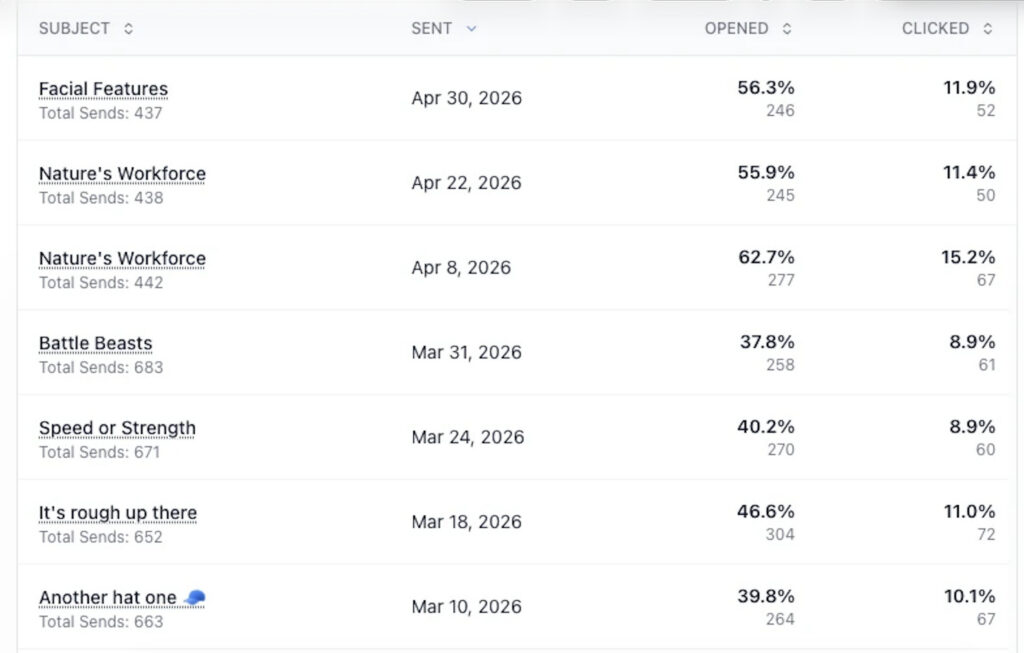
A full table with open rates, click rates, and unique totals alongside subject line, send date, and status
A direct link into AWeber for deeper analysis on any specific broadcast
Patterns across multiple sends are where the real insight lives. Which subject line styles consistently pull higher opens. Where click rates drop off. Which sends are worth digging into. That picture is now one question away.
How to Get Started
1. Visit the AWeber app in the ChatGPT App Directory
2. Click Connect and authenticate with your AWeber account
3. Start asking
Try It
If you’re already using ChatGPT for content, strategy, or daily tasks, connecting your account means your subscriber data and broadcast history are part of that conversation. No more switching tabs to look something up and copying it back.
This is email marketing without friction.