How to use Claude for social media: agency workflow
Agency drafting eats into the hours your team needs for review and client sign-off. That’s where using Claude for social media changes the equation: initial captions and platform variants become Claude’s layer, and your team realigns toward the work that requires human judgment.
For agencies managing multiple accounts, that reallocation is meaningful. First drafts no longer compete with approval cycles for the same hours.
That connection is what closes the loop between Claude’s drafting capability and Planable’s publishing workflow.
Claude handles the drafting layer of a social media workflow, but it can’t schedule or publish posts. Connect it to Planable’s MCP connector to close the loop. Once connected, Claude creates post drafts directly in your Planable workspaces, and your team picks them up for review and scheduling from there.
Claude covers the core tasks in a social media content workflow. It has no publishing or scheduling capability and can’t access live social data.
Claude covers each:
- Caption drafting: Platform-specific copy for Instagram, LinkedIn, Twitter/X, and TikTok from a brief or talking points
- Platform variants: Multiple versions of the same message, adapted per network in a single prompt
- Long-form repurposing: Blog posts, reports, or transcripts turned into multi-channel social copy
- Content calendar ideation: Monthly post ideas by channel, campaign, and audience segment
- Audience research: Persona briefs, interview questions, and pain-point mapping
- Performance analysis: Pattern recognition when you paste in existing reports
- Brand voice drafting: Copy in a specified tone when your guidelines are in the prompt
Claude’s context window: the volume of text it processes in one session. Is 200,000 tokens (approximately 150,000 words), enough to include an entire brand guidelines document alongside your prompt. Claude Projects, Claude’s persistent knowledge-base feature, keeps those guidelines available across sessions so you don’t re-upload for every new task.
How to write social media posts with Claude
To write a social media post with Claude, open Claude.ai, paste a prompt that includes your topic, platform, target audience, tone, and format requirements, then edit the output before scheduling.
1. Writing Instagram captions with Claude
Your agency is drafting Instagram content for a fitness brand client. The brief: HIIT class launch, urban professionals aged 25–40, energetic but not aggressive tone, hook under 150 characters, five hashtags, CTA.
Prompt example:
You are a social media copywriter for a boutique fitness studio. Write an Instagram caption for a new HIIT class launching Monday. Audience: urban professionals, 25–40. Tone: energetic, not aggressive. Format: hook (max 150 characters), three benefit lines, link-in-bio CTA, then 5 hashtags.
Claude’s output example:
Monday just got harder. In the best way.
New HIIT class, launching March 3:
– 45-minute circuit, no equipment needed
– Max 12 people, certified coach on the floor
– Built for the lunch break
Reserve your spot. Link in bio.
#HIITClass #GroupFitness #BoutiqueFitness #FitnessGoals #FitLife
Pass the draft to Planable’s editor. AI Assist handles tone and length adjustments without switching tabs.
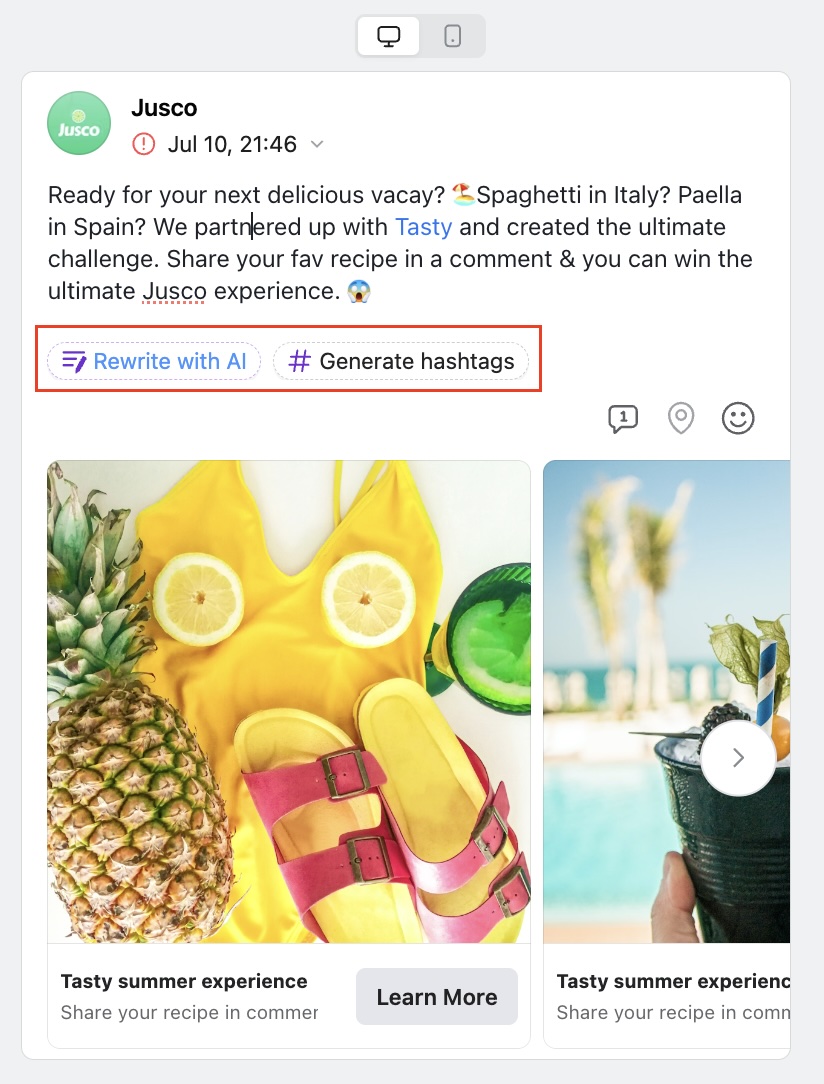
Planable’s AI Assist refines Claude-generated Instagram captions directly in the editor
2. Writing LinkedIn posts with Claude
LinkedIn thought leadership for B2B clients follows a different structure. Short posts with a grounded hook (150–250 words) outperform long-form unless the insight genuinely warrants it.
Prompt example:
You are writing on behalf of a CFO at a B2B SaaS company. Write a LinkedIn post on AI adoption in finance, tied to a real decision from last quarter. Audience: finance leaders at mid-market companies. Tone: direct, mildly provocative. Format: hook sentence, three short paragraphs, one takeaway. No hashtags.
Claude’s output example:
Finance teams adopting AI are making fewer mistakes.
Last quarter, we ran every vendor reconciliation through an AI-assisted review. Not to cut headcount. To catch what slips through every third week. We found it.
Speed is the wrong metric. Accuracy doesn’t show in cycle time; it shows in your audit.
Use AI to review before you approve. The right question: what aren’t we catching?
Include phrase restrictions in your prompt if the client’s tone rules out hype language. Claude applies stated constraints reliably.
3. Writing for Twitter/X with Claude
Single-tweet prompts need the 280-character limit stated explicitly. For threads, specify the count and the arc: hook tweet, body tweets, close.
Prompt (5-tweet product launch thread) example:
Write a 5-tweet thread announcing a project management app for remote teams. Audience: startup operators. Tone: confident, informal. Tweet 1: hook, max 200 characters. Tweets 2–4: one feature each, max 280 characters. Tweet 5: CTA with a URL placeholder.
Claude returns all five tweets numbered and within the stated limits. Review each against the product spec before moving to Planable.
How to prompt Claude to match your brand voice
Every repeatable brand voice prompt needs four elements:
- Role: “You are a copywriter for [brand name], a AI automation targeting [audience].”
- Task: post type, platform, and the specific goal.
- Format: character limit, line structure, hashtag count, CTA placement.
- Brand context: two or three example posts that show the tone, plus any words or phrases to exclude.
At volume, this structure delivers measurable results. Anthropic’s Influencer Marketing team uses Claude to write scripts for influencers and podcasts, freeing over 100 hours per month, according to Anthropic’s internal marketing case study.
For persistent brand voice, use Claude Projects or Skills. It stores uploaded brand guidelines and makes them accessible in every future conversation for that client, unlike session-level context (pasting guidelines into a single chat, which disappears when the conversation closes).
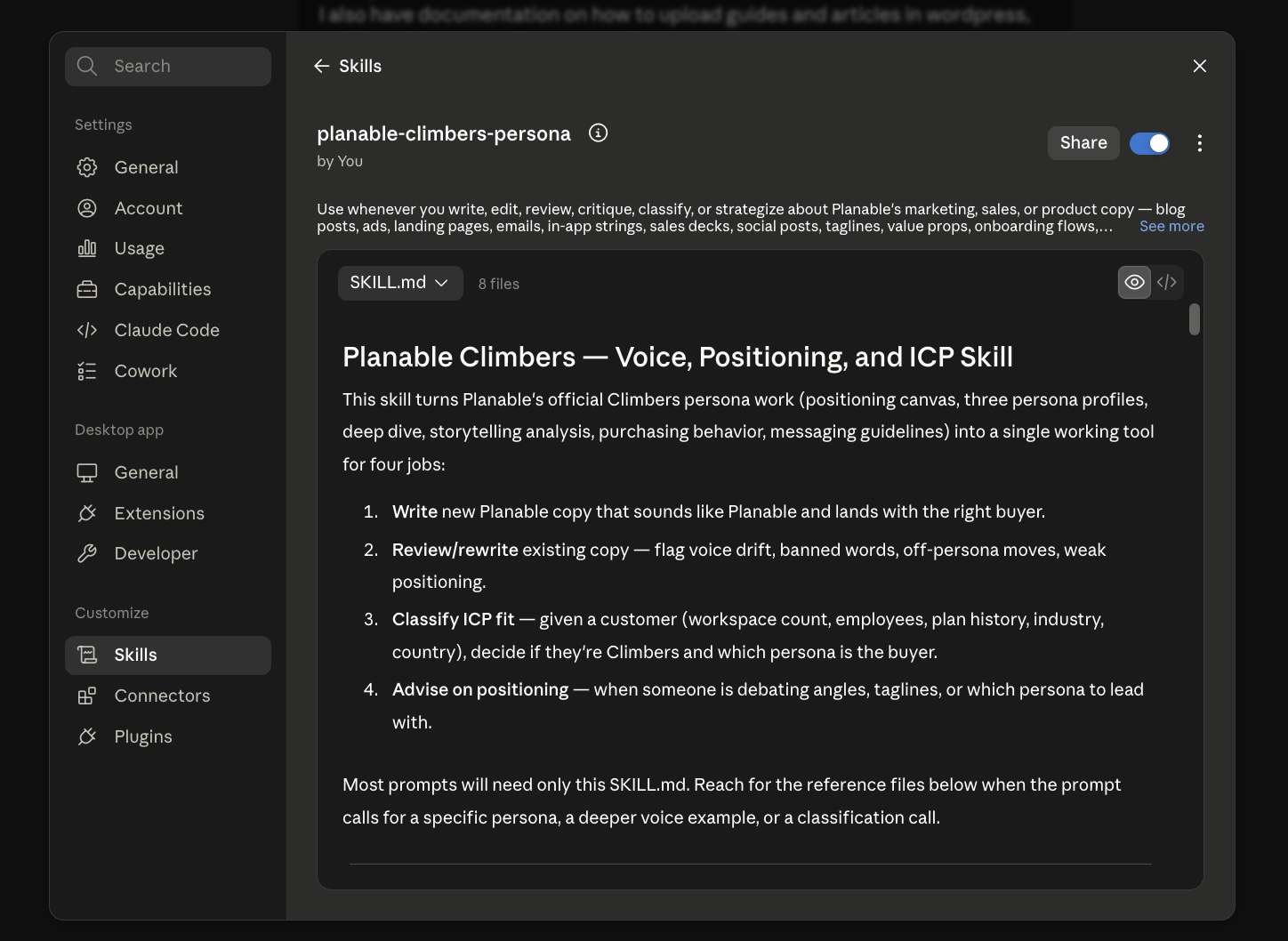
Claude Skills stores brand guidelines persistently across sessions for consistent social media content
Projects and Skills persist across sessions. Upload a client’s brand guide once; every content batch opens with it loaded.
Claude drafts an Instagram caption and a LinkedIn version in the same prompt; both land in Planable’s Universal Post fields for separate per-network scheduling.
Claude covers the planning layer of social media management: the high-effort recurring tasks before a single post is drafted, without requiring access to your live accounts.
That planning work is where agency hours go. According to Sociality’s AI in Social Media Marketing Report, 71.1% of social media professionals say time savings is the biggest improvement from using AI.
For agencies, calendar planning and content repurposing sit among the highest-effort recurring tasks in any weekly workflow, and both run faster when you front-load Claude with a focused brief.
1. Planning a content calendar with Claude
Claude can generate a month of content ideas by channel and campaign theme from a single prompt. It won’t pull live trending data, so the brief carries that context. Include your client’s key themes, upcoming campaigns, and target audience.
Example prompt:
“Act as a social media strategist for [Client Name], a [industry] brand targeting [audience description]. Generate 20 content ideas for [Month] across Instagram, LinkedIn, and X. Organize by campaign theme: [Theme 1], [Theme 2], [Theme 3]. For each idea, include the platform, format, and a one-line brief.”
The output populates your social media content calendar with a starting structure.
2. Repurposing existing content across channels
Paste a blog post and ask Claude to adapt it across platforms:
Example prompt:
“Here is a blog post: [paste full text]. Generate: 3 LinkedIn posts (200–300 words, thought leadership tone); 5 X posts (under 280 characters, direct and punchy); 2 Instagram captions (150–200 words, conversational). Match the brand voice: [paste description or examples].”
Each AI-generated post is automatically created as a draft in Planable. After review, your team can approve the content, schedule it, and publish it to the selected social media channels.
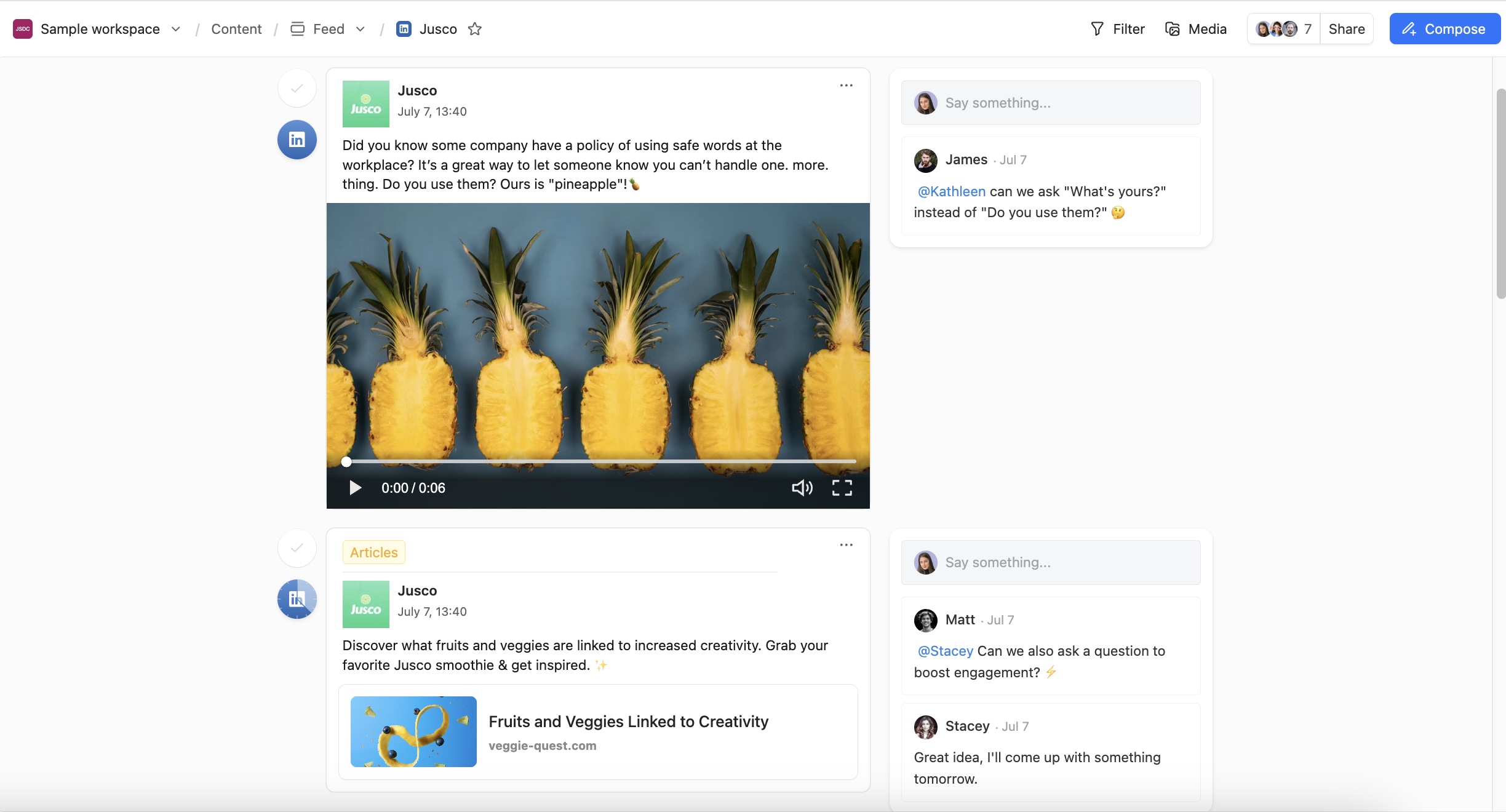
Claude-generated drafts land directly in Planable for team review, approval, and scheduling
How to get Claude-drafted posts approved before they go live
Claude always creates posts as drafts. Before anything goes live, it passes through Planable’s approval chain (internal team review, then client sign-off) with every comment and decision tracked in one place.
AI output speed creates a real governance problem. Claude can produce a week of captions in minutes, and brand voice drift or compliance gaps accumulate at the same pace without a review layer.
According to the Bynder State of DAM Report, 9 in 10 marketing professionals view human oversight as essential for safeguarding brand identity and compliance, and 54% rate it as very important. That’s experienced teams recognizing that volume without review is how brand incidents happen.
As International SEO consultant Aleyda Solis notes about AI content strategies:
“A personalized editorial and optimization workflow is required to ensure quality, originality, and expertise.”
The reasoning holds for social content: the AI generates, but a human owns the final word.
Building a social media approval process into your Claude workflow is where Planable’s Approval Workflows come in. You choose one of three modes per workspace:
- None: nobody has to approve your posts, and the option isn’t visible at all.
- Optional: reviewers are looped in, but content can publish without a response. Useful for low-risk, high-velocity clients.
- Required: nothing publishes until an approver signs off. The right call for brand-sensitive accounts where a single post going out wrong has real consequences.
- Multi-level: sequential approval layers where each must clear before the next starts, with internal team review first and the client-visible stage after.
Your team leaves internal comments and resolves feedback inside Planable before the client ever accesses the workspace.
Once a post is approved, Planable locks it. Any subsequent edit triggers re-approval, so the version that publishes is exactly what the client signed off on.
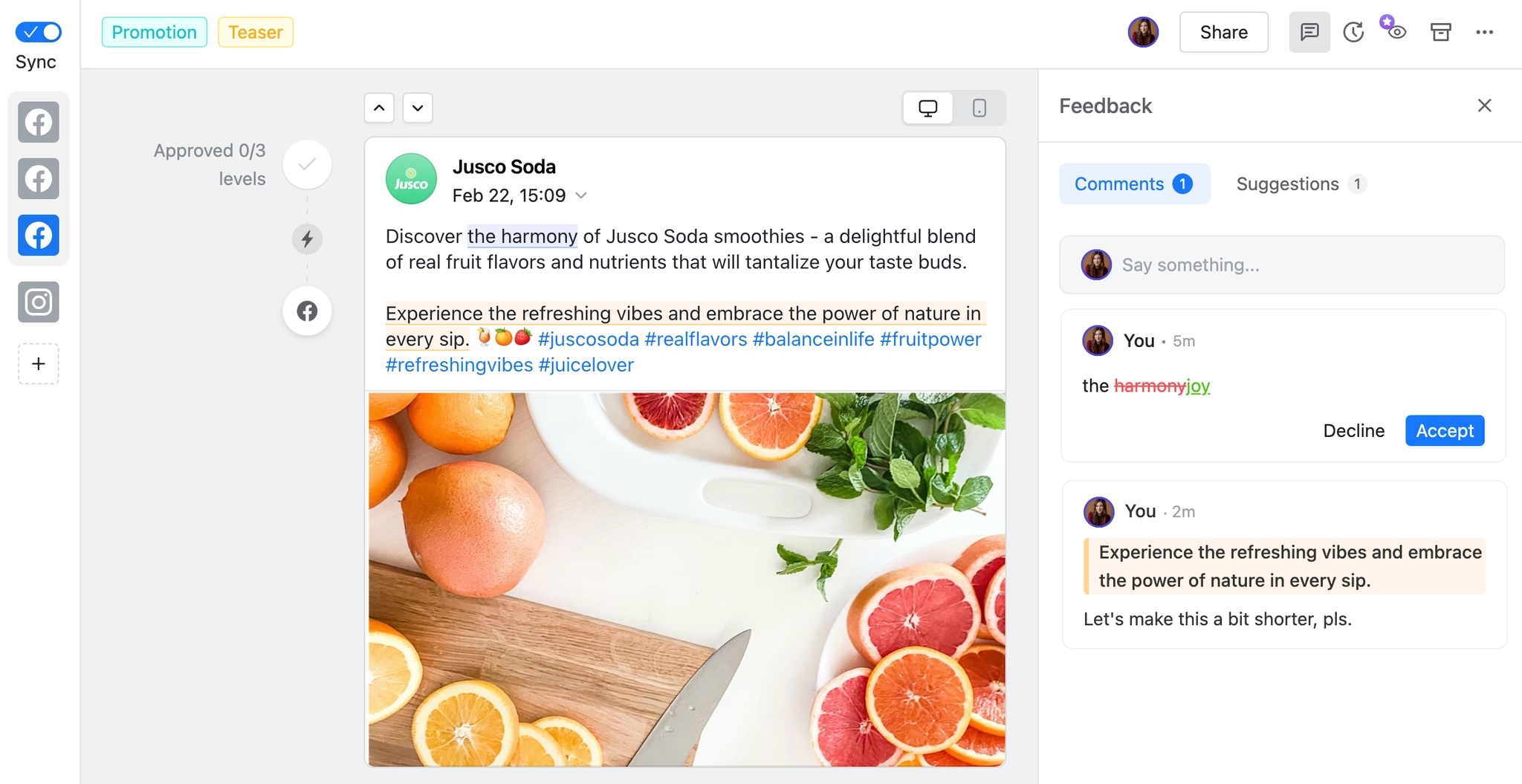
Planable’s approval workflow settings: none, optional, required, or multi-level review
Scheduling and publishing Claude-generated content
Once a post is approved in Planable, scheduling is the last step, and it happens in the same place where Claude created the draft.
From the approval view, you set a publish date, confirm the network, and the post joins Planable’s publishing queue. No separate scheduler to open, no copy-paste out of Planable.
The draft Claude generated goes live from the same workspace where your team reviewed and your client approved it.
The calendar view shows all queued posts across your connected accounts in a single grid. For agencies running multiple clients, this means you can see coverage gaps across brands at a glance and shift the timing on any post without losing context on what’s already scheduled around it.
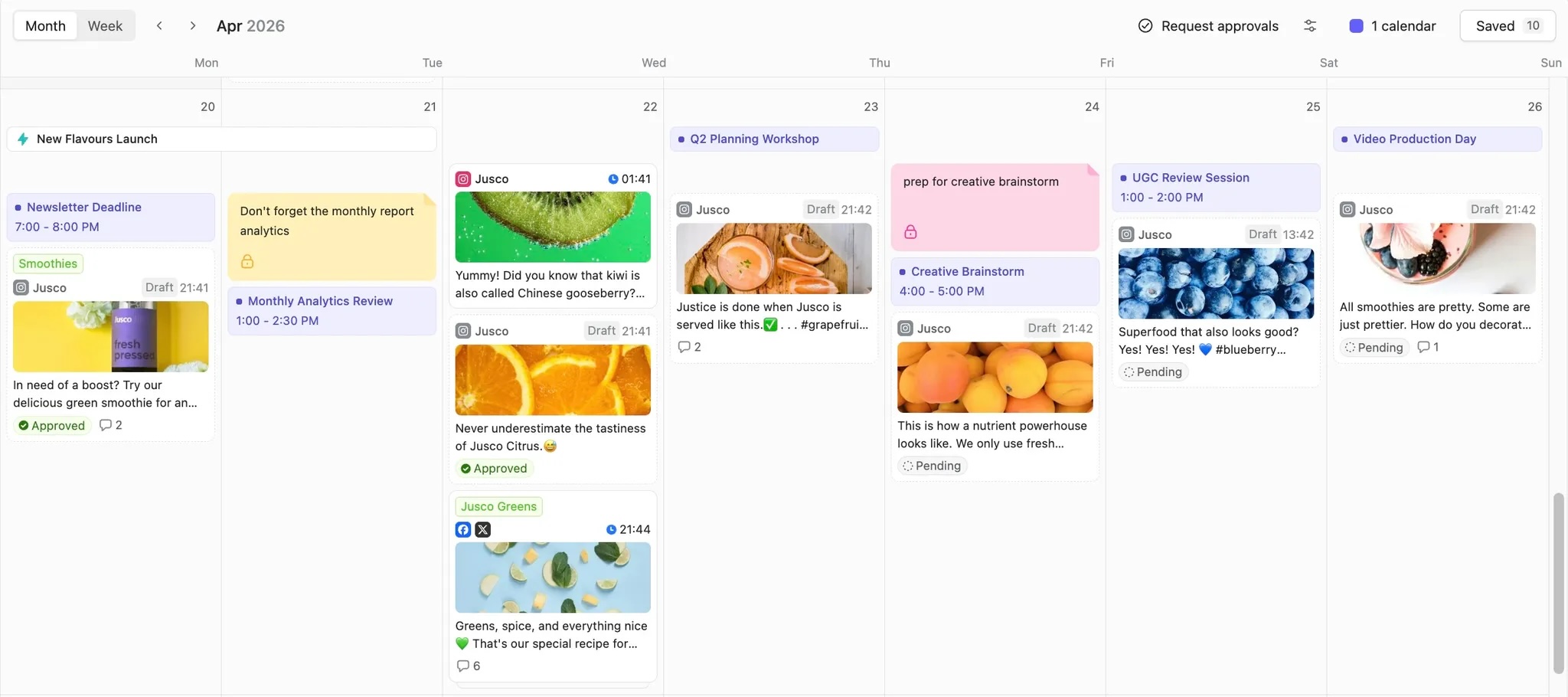
Planable’s calendar view shows all queued posts across client accounts in one grid
Cross-platform publishing works through Planable’s Universal Post format (the view that holds platform-specific copy for Instagram, LinkedIn, and X in a single editor).
When Claude drafts all three variants in one prompt, each drops into its respective network field inside the Universal Post.
Planable then publishes each to its platform on its own schedule, so a LinkedIn post going out Tuesday morning and an Instagram caption scheduled for Thursday evening are both managed from the same place, without separate workflows per network.
How agencies use Claude to manage multiple clients
Agencies managing five or more clients face a specific Claude challenge: keeping brand voices, approval chains, and content pipelines separate for every client simultaneously.
- Workspace separation. Each client gets its own Planable workspace. Point Claude’s MCP connection at a specific workspace and it reads and writes only within that context. No drafts or brand context from another client leaks in. This scoped access is how social media management for agencies stays organized when you’re running 10 or more active accounts.
- Per-client brand voice in Claude Projects or Skills. Upload each client’s brand guide, tone of voice document, and example posts into a dedicated Claude Project or Skills. Run the Planable MCP skill within that Project or Skill. Claude carries the right brand instructions without you re-pasting context into every conversation.
- Per-client approval chain. Set approval modes per workspace: one-click for clients who trust your judgment, multi-level for those requiring sequential internal review before client sign-off. The setting holds across every post Claude generates in that workspace.
Sara Dorsey, Operations Lead at Rushton Marketing, manages 17 client workspaces this way:
“Being able to ask Claude to check whether our content aligns with strategy, or get suggestions on what we could be doing better, really useful.”
Demme Durrett, Social Media Manager at Influx Marketing, frames the broader operational shift:
“This has completely changed how we operate. The ability to manage content programmatically through conversation is something we didn’t know we needed until we had it.”
How to connect Claude to Planable with the MCP connector
The Planable MCP connector for Claude links Claude directly to your Planable workspaces, with no code required.
Once connected, Claude can create draft posts directly in those workspaces. Checking pending approvals and pulling schedule status are also available from the same connection, without leaving your workflow.
MCP, or Model Context Protocol, is a standard that lets AI models like Claude connect to external tools with read/write access, without custom code.
Setting up the Planable MCP connector
Claude Desktop is Anthropic’s free desktop app that supports MCP connections. You can also connect via the Claude web interface.
- Open Claude Desktop or the Claude web app and navigate to Integrations or MCP connector settings.
- Add the Planable MCP server URL:
https://mcp.planable.io/mcp. - Find Planable in the list and click Connect.
- Log in with your Planable credentials to authorize access.
- Download the workflow skills from Github. All are free.
A few practical notes before you connect:
- The connector is available on all Planable plans, including the free trial.
- Running the 6 skills requires Claude Pro, Max, or Teams.
- Claude creates posts as drafts only. Every draft goes through Planable’s normal approval and scheduling workflow before anything goes live. Claude doesn’t auto-publish.
- Authorization lasts 180 days. The connection expires after 8 hours of inactivity.
What the six Claude skills do for agencies
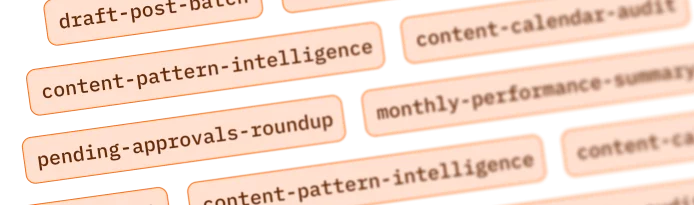
The skills are workflow blueprints you download from GitHub and run against any connected workspace.
Draft a post batch
MCP
Writing and creating drafts across client workspaces
Pending approvals roundup
MCP
Daily check: all pending approvals across all workspaces
Monthly performance summary
MCP or CSV
Client-ready HTML report with KPI cards and top posts
Content calendar audit
MCP
Weekly planning: flags drafts, errors, and scheduling gaps
Cross-client metrics overview
MCP
Monthly review ranked by engagement across all clients
Content pattern intelligence
MCP or CSV
Content strategy: patterns in top posts, testable hypotheses
Best for
Writing and creating drafts across client workspaces
Best for
Daily check: all pending approvals across all workspaces
Best for
Client-ready HTML report with KPI cards and top posts
Best for
Weekly planning: flags drafts, errors, and scheduling gaps
Best for
Monthly review ranked by engagement across all clients
Best for
Content strategy: patterns in top posts, testable hypotheses
Pro tip: Skills 3 (Monthly performance summary) and 6 (Content pattern intelligence) work from a CSV export, no live MCP connection required. Run them for any client immediately using a data export from your analytics tool, before completing the full MCP setup.
Once Claude-generated drafts land in Planable, AI Assist handles in-editor refinement without switching back to Claude. If you ask Claude to draft platform variants in one prompt, each version populates Planable’s per-network post fields via Universal Post, the same format your team uses for cross-channel content.
Connect Claude to Planable and run your full content workflow from one place, every step from first draft to published post.
Claude can’t publish to social platforms, and it has additional documented limitations that agency workflows need to account for.
Here is what each one means in practice and how to compensate:
As SEO strategist Lily Ray observes about high-volume AI content:
“Scale without substance might work temporarily, but it doesn’t usually end well.”
Knowing Claude’s actual limits (and having a plan for each) keeps that concern from becoming a problem.
- No direct publishing or scheduling. Claude has no connection to your social accounts. The Planable MCP connector routes drafts directly into Planable, where they pass through your approval chain before anything goes live.
- No image generation. Claude is a text model. Use it to write the caption and a creative brief, then hand that brief to your design tool for the visual. For a more connected workflow, you can integrate Canva with Planable. Designs can be exported directly to the appropriate Planable workspace, where they are stored in the Media Library and can be added to posts. You can also import assets from Planable’s Media Library into Canva for editing.
- No real-time data or live social analytics. Claude can’t pull your current engagement metrics or live trending topics. Paste your performance report into Claude for synthesis, or run Planable’s Content Pattern Intelligence skill with a CSV export from your analytics tool.
- No persistent brand memory by default. Each Claude session starts fresh unless you’ve set up storage. Upload your brand guide to Claude Projects or Skills, or use the Planable MCP skill, which includes brand context in its prompt structure from the start.
Claude is often the better fit for teams that rely on detailed brand voice guidelines. Its larger context window can process lengthy style guides, campaign briefs, and reference materials in a single prompt, which helps maintain consistency across social media drafts.
ChatGPT is generally stronger when workflow speed and third-party integrations matter. Its broader integration ecosystem makes it easier to connect content creation with scheduling tools, publishing platforms, and automated multi-channel workflows.
The practical choice depends on the task:
- Choose Claude for long-form drafting, complex brand guidance, and content that requires extensive source material.
- Choose ChatGPT for integrated production workflows, rapid content adaptation, and multi-platform publishing.
- Use both when the team needs Claude’s context handling and ChatGPT’s workflow integrations.
For many agencies, the most effective setup is complementary rather than exclusive. Claude can produce brand-aligned drafts, while ChatGPT or a connected publishing tool can adapt, schedule, and distribute the content.
FAQs
Is Claude free to use for social media?
Yes. Claude has a free tier with daily limits of roughly 50 to 80 messages. The Pro plan is $20/month, or $17/month billed annually. For high-volume agency work with the Planable MCP connector, the six workflow skills require a Pro or Teams plan.
Does Claude have a social media integration?
No. Claude has no native integration with social media platforms. It generates text only. The Planable MCP connector fills that gap: once connected, Claude can create draft posts directly in your Planable workspaces, where they move through the approval and scheduling workflow without any manual copy-paste.
Is Claude better than ChatGPT for social media content?
Claude is often a better fit for brand-sensitive drafting that relies on extensive guidelines and reference material. ChatGPT is often a better fit for integrated, high-volume content workflows. Teams can also combine them, using Claude for tightly guided drafting and ChatGPT for adaptation and workflow execution.
The right setup depends on how much content you manage and where your workflow currently slows down.
For individual creators, the main friction is often the copy-and-paste loop between AI drafting, stakeholder review, and social publishing. Connecting Claude to Planable through MCP reduces that friction. Claude can create drafts in an authorized Planable workspace, where the content can remain throughout review, approval, scheduling, and publishing.
For agencies and multi-brand teams, workspace structure matters first. Creating a separate Planable workspace for each client helps keep content, collaborators, social accounts, and approval processes organized. Claude only receives the Planable access granted to the connected user, which helps prevent content from being created in unauthorized workspaces.
Connect Claude to Planable through the Planable MCP server to move from AI-assisted drafting to an organized social media workflow without manually transferring every post.
Horea is a software reviewer and tester, content writer, and tech geek. He loves to fiddle with MarTech solutions to find what each software is best for and help you decide which one might be your best fit. His content is allergic to fluff and eats research for breakfast. If you’re on the fence about whether you should commit to a particular platform, Horea probably already wrote about it.