How to schedule social media posts with an MCP
You’re managing five client accounts, you’ve got Claude writing captions in one tab, and your scheduling platform open in another. Copy, paste, format, repeat. The gap between an AI that can write posts and a platform that can publish them is exactly what an MCP closes, and you can now schedule social media posts with an MCP without that copy-paste loop at all.
This guide walks through exactly how to connect an AI model to a scheduling platform’s MCP server, step by step, so you can move from prompt to published draft without leaving your AI assistant, using Planable’s MCP as the worked example.
What is MCP?
MCP (Model Context Protocol) is an open standard, launched by Anthropic in November 2024, that lets AI models connect to external tools and data sources through a single, consistent interface, including social media schedulers.
Think of it like USB-C for AI. Just as USB-C is one cable that works for charging, data transfer, and display output regardless of the device, MCP is one protocol that connects an AI model to any compatible tool, whether that’s a scheduling platform, a CRM, or a database. The same interface works everywhere.
At launch, Alex Albert, Head of Claude Relations at Anthropic, described it plainly:
No more building custom integrations for every data source. MCP provides one protocol to connect them all.
OpenAI, Google DeepMind, and Microsoft all adopted it in 2025, which tells you this isn’t niche infrastructure. The adoption curve reflects that. Anthropic’s official announcement reported more than 10,000 active public MCP servers. For social media teams, that ecosystem matters: it means MCP-compatible tools, including schedulers, are now built and maintained at scale.
MCP lets your AI model take action inside your scheduling platform, not just generate text for you to copy-paste in. A single prompt can create a post, assign it to the right account, and queue it for approval across multiple platforms simultaneously.
1. It cuts the context-switching loop
The current workflow for most teams: open your AI writing tool, generate a draft, copy it, switch tabs, log into your scheduler, paste, set the time, pick the account, repeat. MCP collapses that into one step. You prompt once; the post lands in your scheduler, on the right account, ready for review.
That’s where the time savings actually show up for social teams. According to Planable internal data from the first six weeks after launch, nearly 4 in 5 MCP integrations were set up with write permissions. Teams aren’t just querying their content calendar; they’re scheduling posts through their AI agent.
2. It keeps humans in the loop without slowing them down
When you connect Claude to Planable via MCP, posts land as drafts in Planable. Your team reviews, approves, and publishes from there. The AI writes it; your team owns it.
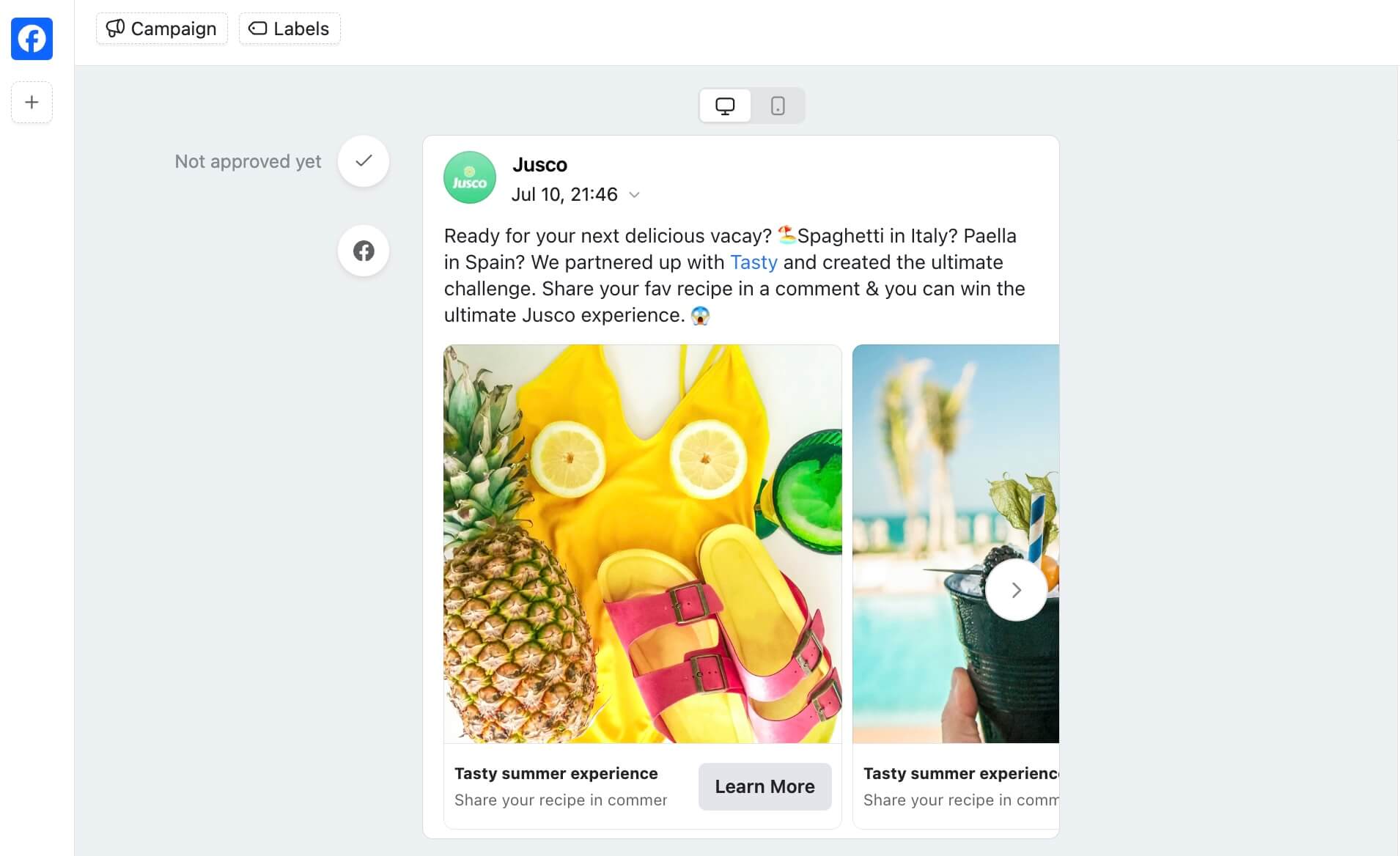
Planable post editor showing a draft awaiting approval
That approval step doesn’t disappear. It gets faster because the content is already drafted, structured, and in the right place. Posts created via Planable MCP are always drafts. Publishing and approvals follow the same process as any other post in Planable. The workflow is intact; the manual content-creation leg is gone.
3. It works across platforms from a single prompt
One Claude prompt can create posts for LinkedIn, Instagram, and X simultaneously through Planable’s workspace structure.
Whatever social accounts are already connected in your Planable workspace are reachable via MCP, with no additional setup per platform and no separate configuration per network.
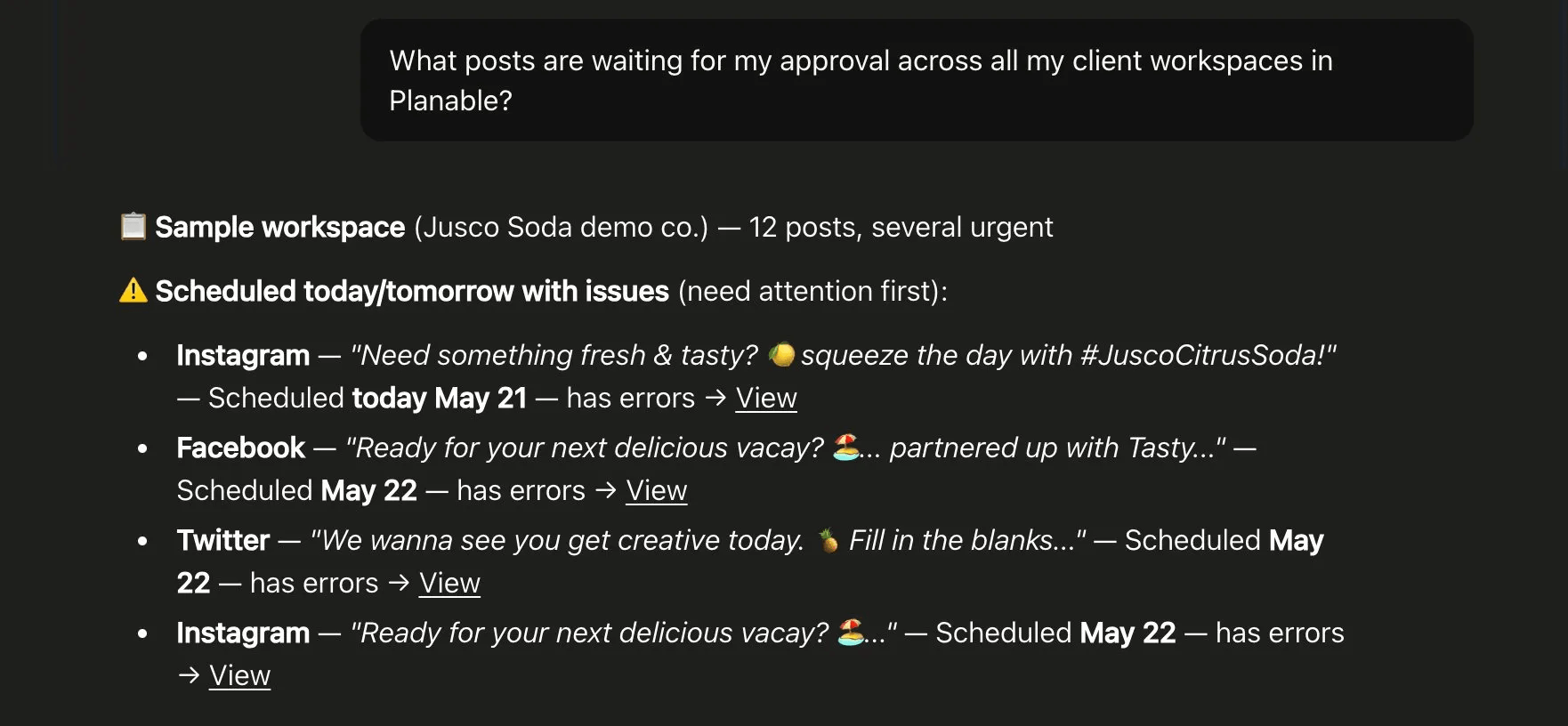
Example Claude prompt for posts requiring approval across a Planable workspace
This also isn’t a Claude-only capability. According to Planable internal data after six weeks post launch, 36 different AI tools (from ChatGPT to n8n to Cursor) have connected to Planable’s MCP server, which means the workflow carries over to whatever AI host your team already uses.
What you need to get started
To schedule posts via MCP, you need three things: an MCP-compatible AI host, the Planable MCP server, and a connected Planable workspace.
- An MCP-compatible AI host: Claude Desktop is the recommended path (Windows, macOS, Linux)
- The Planable MCP server: endpoint at
https://mcp.planable.io/mcp, available on all paid plans - A connected Planable workspace: at least one social account already linked in Planable
1. An MCP-compatible AI host
Claude Desktop (available at claude.ai/download) is the recommended option for non-developers.
Claude’s free tier supports one MCP connector, but Claude Pro ($20/month) gives you unlimited connectors and is the recommended setup for multi-workspace social teams. Planable’s MCP server is host-agnostic, so technical readers can connect from other MCP-compatible environments too:
- VS Code Copilot
- Cursor
- LlamaIndex
2. A Planable account
Planable’s MCP connector works on all plans, including the free trial (first 50 posts). Your workspace needs at least one social account connected before you start.
The MCP can only schedule to accounts already inside Planable. Within six weeks of launch, over 100 existing teams had connected their AI workflows to Planable via MCP (Planable internal data), which signals the setup barrier is lower than it sounds.
3. The Planable MCP server
The connector endpoint is https://mcp.planable.io/mcp, which gives Claude access to 10 tools covering content scheduling, workspace management, and approval workflows.
Two setup paths exist: the Desktop Extension (a one-click install, no JSON editing required) for most users, and a manual JSON configuration for power users who want full control.
Once connected, Claude (or other AI tool) can read and write to every workspace your Planable account can access.
To set up MCP for social media scheduling: install an MCP-compatible AI host, add the Planable MCP server endpoint, connect your Planable workspace, then prompt your AI with your post brief. Posts land as drafts in Planable, ready for review.
Step 1. Get an MCP-compatible AI host
Any MCP-compatible AI host works with Planable’s connector: Claude, ChatGPT, Claude Desktop, Cursor, VS Code Copilot, and n8n are all compatible. If you already use one of these, skip to Step 2.
If you’re starting fresh, Claude and ChatGPT are the easiest options. No installation required, and both have Planable available directly in their connector panel.
Claude’s free tier supports one MCP connector; Claude Pro ($20/month) gives you unlimited connectors, which matters for agencies managing multiple client workspaces. Claude Desktop is the right choice if you prefer a local application or need connections not available in the web interface.
Step 2. Connect Planable to your AI host
Claude and ChatGPT (easiest path): Search “Planable” in the connectors or tools panel, click Install, and follow the OAuth login flow. That’s it.
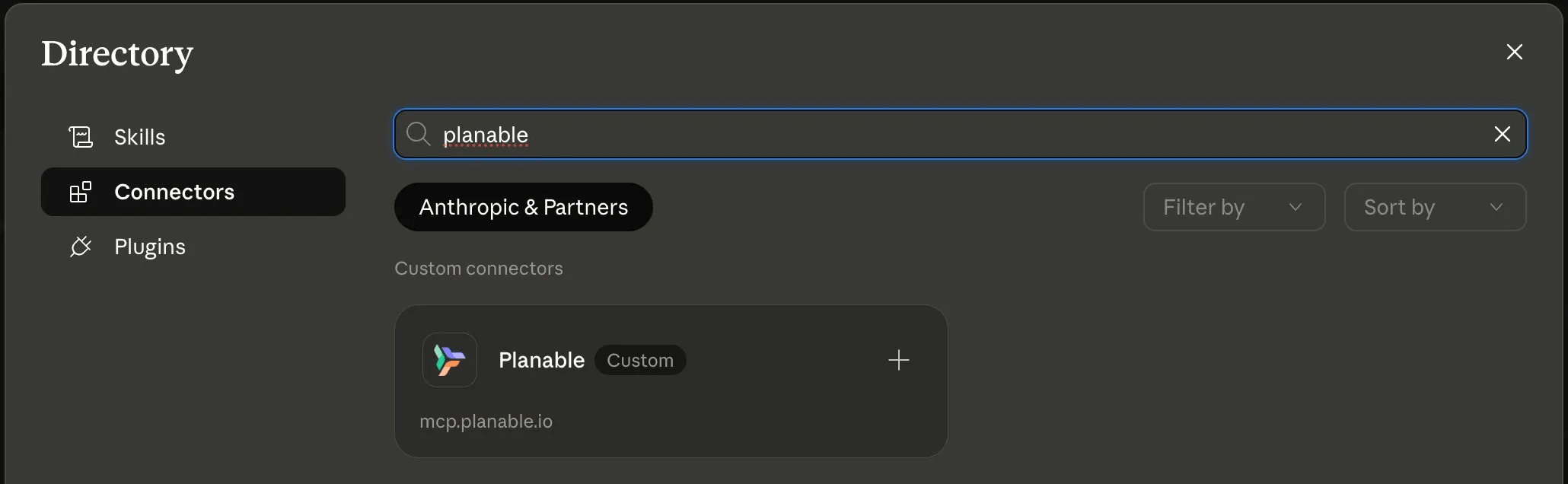
Claude interface displaying the Planable connector
Other MCP-compatible hosts (Cursor, VS Code Copilot, n8n): Add the Planable server to your host’s configuration manually or use the AI-integrated assistant. Save and restart your AI host. Planable should appear in your connected integrations.
Step 3. Verify the connection
Before you send any post briefs, confirm that the AI host can actually see your Planable data. Ask it directly: “What Planable workspaces do I have access to?”
The AI tool should return a list of your workspace names, workspace IDs, and the social accounts connected to each. If you see your workspaces, the connection is working.
If it says it doesn’t have access or returns an error, check that you completed the OAuth authorization step during setup, then restart your AI host and try again.
Step 4. Prompt your AI to create a post
Once the connection is verified, give your AI a concrete brief. The more specific you are, the closer the draft will be to what you’d write yourself.
For a single scheduled post:
“Using my [workspace name] workspace, create a LinkedIn post for [brand] announcing [topic] and schedule it for next Tuesday at 10am.”
For a batch of posts:
“Create 5 LinkedIn posts for [Client] about their upcoming campaign launch and add them as drafts in Planable.”
Your AI tool confirms the action and tells you the post has been created as a draft in the specified workspace, with the content, scheduled time, and a note that it’s awaiting approval. Nothing goes live at this point.
Pro tip: Specificity is the variable that determines draft quality. “Write a LinkedIn post for [Client Name], B2B SaaS audience, announcing a new analytics feature, professional but conversational, max 150 words” gives your AI a fighting chance. “Write a LinkedIn post for my client” gives it very little. Build a prompt template for your most common post types. It’s a one-time investment that pays off every time you use it.
Step 5. Review and approve in Planable
The draft shows up in Planable’s content calendar exactly as it would if a team member had created it manually. Same view, same status indicators, same options. Your team can add comments, request edits, or approve.
This is the part of the workflow that matters for agencies and teams with approval obligations. The AI wrote the post; your team owns what goes live.
Planable’s approval workflow stays intact regardless of how the draft was created. A post made by Claude goes through the same review process as a post written by a copywriter. That’s deliberate design.
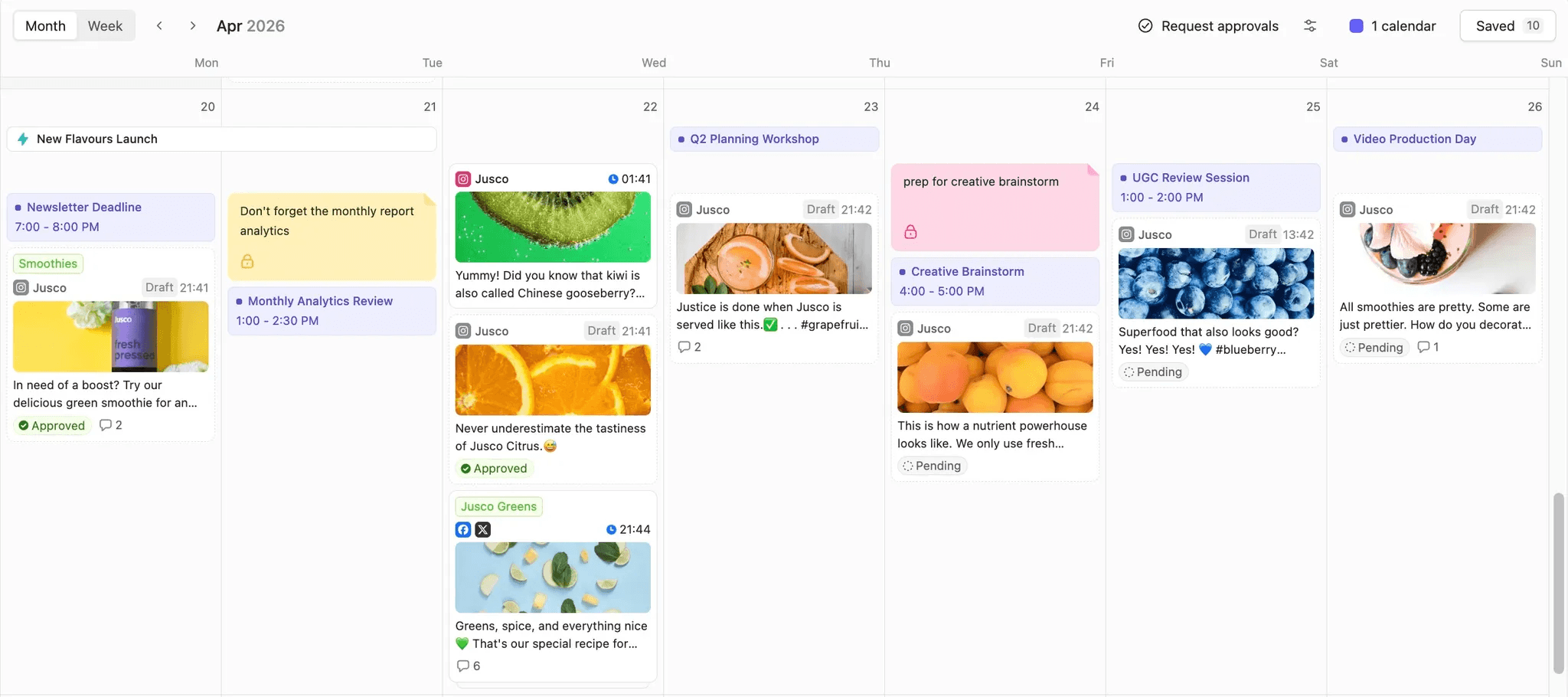
Planable content calendar showing scheduled posts awaiting review
Nothing about the collaboration changes. Your client still sees the same review interface. Your approval chain still works the same way. The only thing that’s different is where the first draft came from.
MCP changes what a single prompt can do, but it does not remove every workflow constraint. Before using an MCP connector to schedule social media posts, teams should check AI host access, setup requirements, prompt quality, and connected account coverage.
These limitations matter most for agencies managing multiple client workspaces. A small access or setup issue in one workspace can become a repeated bottleneck when every account manager or client calendar depends on the same MCP workflow.
1. MCP access depends on your AI host and plan
MCP availability varies by AI host, connector type, and subscription plan.
Claude supports custom connectors using remote MCP on Free, Pro, Max, Team, and Enterprise plans, but Free users are limited to one custom connector.
ChatGPT and other AI hosts have their own availability rules. ChatGPT users can build custom apps using MCP, while workspace admins can control whether custom apps are allowed and how they are rolled out. OpenAI also notes that apps with sync are available only for select paid plans.
For solo practitioners connecting one workspace, these limits may be manageable. Agencies running several client workspaces should factor AI host plans, per-seat access, admin permissions, and connector limits into the rollout budget before adopting MCP scheduling team-wide.
2. Setup has a learning curve for non-technical users
MCP setup complexity depends on the AI host and connector format.
Claude Desktop Extensions are designed to make MCP server installation closer to a one-click process. Claude also distinguishes between remote connectors, which work through the web, and desktop extensions, which work through the Claude Desktop app.
Other hosts or connector setups may still require manual configuration, OAuth authorization, workspace permissions, or admin approval. Teams unfamiliar with connector settings may need IT help during the first setup.
Once the connector is configured, day-to-day use is simpler. Most recurring work happens through prompts, so the main friction is usually the initial connection and permissions setup.
3. Prompt quality determines output quality
MCP executes the task based on the instructions and context provided in the prompt. A vague prompt gives the AI too little information to create a useful, on-brand, platform-ready post.
❌ Weak prompt: “Write a LinkedIn post for my client.”
✅ Stronger prompt: “Write a LinkedIn post for [Client Name], targeting a B2B SaaS audience. Announce the new analytics feature in a professional but conversational tone. Keep it under 150 words and add it to Planable as a draft.”
The stronger prompt works better because it gives the AI the client, audience, platform, topic, tone, length, and destination. Those details reduce ambiguity and make the output easier to review.
For repeatable quality, build a prompt template library for common post types, such as:
- Product announcements
- Event promotions
- Thought leadership posts
- Campaign recaps
- Customer story posts
- Approval reminders
- Monthly reporting requests
A useful MCP scheduling prompt should specify:
- Client or workspace name
- Social platform
- Target audience
- Campaign or topic
- Desired tone of voice
- Word or character limit
- Required link, asset, or CTA
- Whether the post should be drafted, scheduled, or sent for approval
4. Platform coverage depends on your Planable workspace
An MCP connector can only schedule content through the social accounts available in the connected Planable workspace.
If a client’s TikTok account is not connected in Planable, the AI host cannot schedule TikTok posts through that workspace. The same applies to any other missing social account, page, or profile.
Before running your first scheduling prompt, confirm that:
- The correct client workspace is connected.
- Every social account you want to schedule to is live in Planable.
- The user has permission to create or schedule posts.
- Required assets are available for media-first platforms.
- Approval workflows are configured for the client.
AI host access
Plan tier, connector limits, seat access, and admin permissions
Prevents blocked workflows during rollout
Setup complexity
OAuth, connector settings, desktop or remote setup, and workspace permissions
Reduces first-run friction for non-technical users
Prompt quality
Client, platform, audience, topic, tone, length, CTA, and draft or schedule status
Improves output quality and reduces review time
Planable workspace coverage
Connected social accounts, user permissions, media assets, and approval workflows
Ensures the MCP can schedule to the right channels
What to check
Plan tier, connector limits, seat access, and admin permissions
Why it matters
Prevents blocked workflows during rollout
What to check
OAuth, connector settings, desktop or remote setup, and workspace permissions
Why it matters
Reduces first-run friction for non-technical users
What to check
Client, platform, audience, topic, tone, length, CTA, and draft or schedule status
Why it matters
Improves output quality and reduces review time
What to check
Connected social accounts, user permissions, media assets, and approval workflows
Why it matters
Ensures the MCP can schedule to the right channels
How to get more from Planable’s MCP with built-in Claude skills
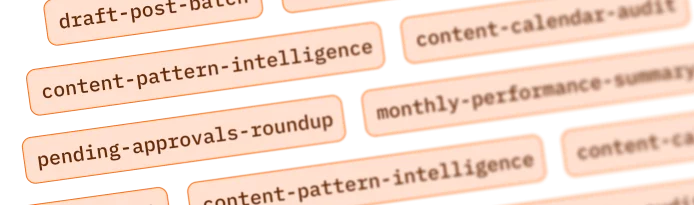
Planable’s MCP connector can do more than create individual social posts. It includes multiple pre-built Claude skills: reusable workflow blueprints that help agencies manage approvals, audits, drafts, reporting, and performance analysis across multiple client workspaces.
These skills are especially useful for agencies that manage several clients in Planable. A workflow that saves a few minutes in one workspace can save significantly more time when repeated across 5, 10, or 20 client accounts.
You can download the Claude skills for free from GitHub and use them as starting points for recurring agency workflows.
When should agencies use Planable’s MCP skills?
Planable’s MCP skills are most useful when an agency manages multiple client workspaces and repeats the same checks every week or month.
They are a good fit for:
- Social media teams managing several client calendars.
- Account managers who need quick approval or reporting updates.
- Content leads preparing weekly planning or QA reviews.
- Agency owners who need a cross-client view of content and performance.
- Teams that want drafts created in Planable without skipping review.
They are less useful for teams that only manage one small workspace, do not use Planable for approvals, or need fully custom reporting logic that is not covered by the provided skill templates.
Planable MCP skills comparison table
Pending approvals roundup
Approval management
Posts waiting for sign-off, with urgency flags for posts going live soon
Account managers and approvers
Content calendar audit
Weekly QA
Approved posts, drafts, publishing errors, and posts without sign-off
Content leads and social media managers
Draft post batch
Content production
Draft posts based on topic, platform, count, and tone
Writers and content teams
Monthly performance summary
Client reporting
Client-ready performance summaries from Planable metrics
Account managers and client leads
Cross-client metrics overview
Agency-wide reporting
Engagement, reach, and post volume across connected workspaces
Agency leads and operations teams
Content pattern intelligence
Strategy and briefing
Patterns in top-performing posts compared with bottom-performing posts
Strategists and creative leads
Best use case
Approval management
What it checks or creates
Posts waiting for sign-off, with urgency flags for posts going live soon
Best for
Account managers and approvers
What it checks or creates
Approved posts, drafts, publishing errors, and posts without sign-off
Best for
Content leads and social media managers
Best use case
Content production
What it checks or creates
Draft posts based on topic, platform, count, and tone
Best for
Writers and content teams
Best use case
Client reporting
What it checks or creates
Client-ready performance summaries from Planable metrics
Best for
Account managers and client leads
Best use case
Agency-wide reporting
What it checks or creates
Engagement, reach, and post volume across connected workspaces
Best for
Agency leads and operations teams
Best use case
Strategy and briefing
What it checks or creates
Patterns in top-performing posts compared with bottom-performing posts
Best for
Strategists and creative leads
How to choose the right Planable MCP skill
Choose the skill based on the agency task you want to reduce:
- For approval risk, use the pending approvals roundup.
- For weekly publishing readiness, use the content calendar audit.
- For new content creation, use the draft post batch.
- For end-of-month reporting, use the monthly performance summary.
- For agency-wide performance visibility, use the cross-client metrics overview.
- For strategy and creative planning, use content pattern intelligence.
The main advantage is repeatability. Once a workflow works for one client workspace, the same skill can be reused across every connected client account.
Start scheduling with MCP today
You’ve got the workflow. In the first 60 days, API adoption grew 3x month-over-month (Planable internal data). More than 100 teams connected in the first six weeks. This is proven territory, not an experiment you’re running alone.
The draft-first model is the point. Your approval workflow stays intact; the AI just fills the calendar. And MCP access comes with every Planable plan.
Ready to run it yourself? Get your 50 posts for free and connect your first workspace today.
Horea is a software reviewer and tester, content writer, and tech geek. He loves to fiddle with MarTech solutions to find what each software is best for and help you decide which one might be your best fit. His content is allergic to fluff and eats research for breakfast. If you’re on the fence about whether you should commit to a particular platform, Horea probably already wrote about it.