Email Domain Authentication: A Complete Setup Guide
Key takeaways
Set up all three authentication protocols (SPF, DKIM, and DMARC). Gmail, Yahoo, and Microsoft now reject bulk mail (5,000+/day) from senders without them.
Verify a custom sending domain in Omnisend to remove the “soundest.email” warning.
Send marketing campaigns from your root domain and transactional emails from a subdomain, so spam complaints on promotions don’t damage the delivery of order confirmations.
If your emails are landing in spam, you’re getting 550 5.7.15 rejections from Outlook, or your email campaigns have “soundest.email” right besides your sender name, the root cause is almost always the same – missing or misconfigured email domain authentication.
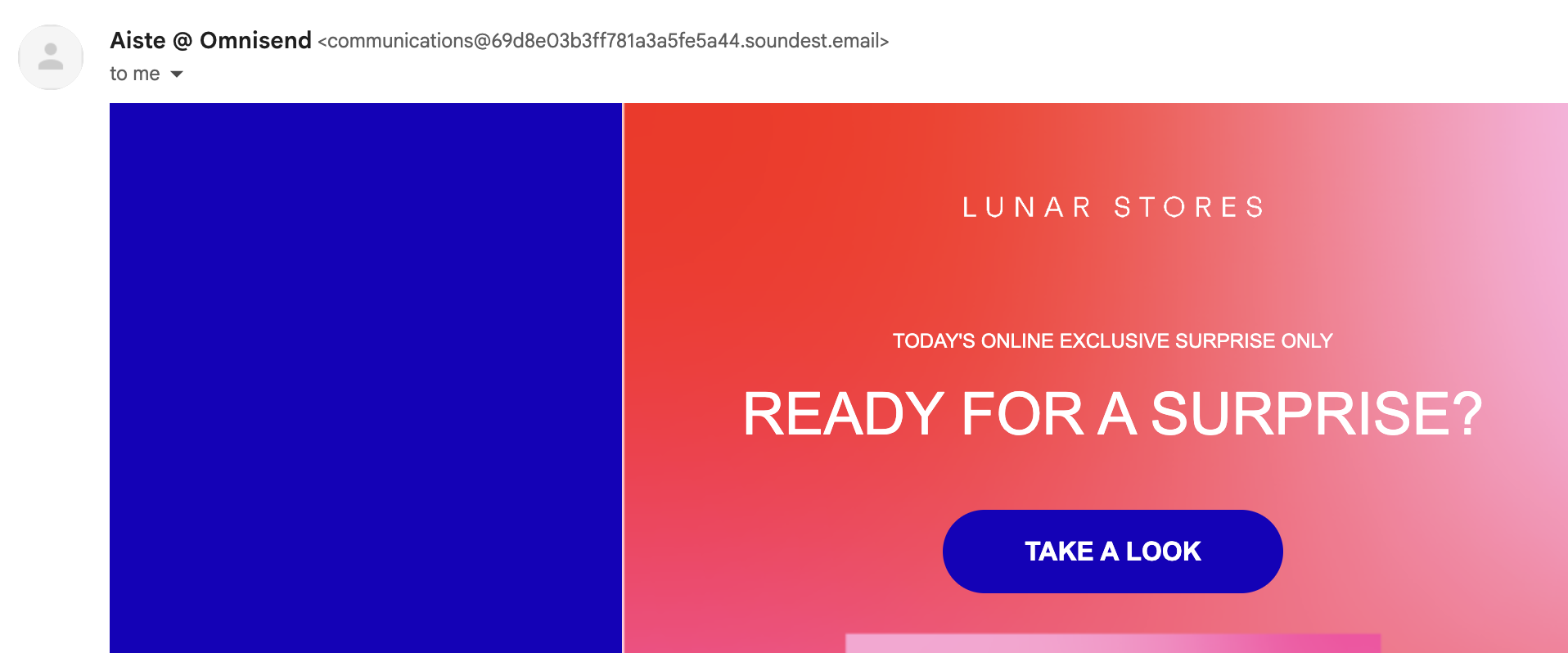
Email domain authentication is now enforced by most major email providers, so failing to properly implement it will greatly affect your marketing campaigns.
In this article, we’ll explain what email domain authentication is, why providers enforce it, and how you can set it up on Omnisend.
What is email domain authentication?
Email domain authentication is a set of DNS-based standards (SPF, DKIM, DMARC) that are used to prove that an email legitimately comes from the domain it claims to be from. If email domain authentication is missing or misconfigured, servers will route your letters to spam more often, display warnings, or even reject the send outright.
SMTP, the protocol used to send email, was designed in 1982, long before authentication and security were much of a concern. There are two separate FROM fields: envelope sender (used during server-to-server communication) and the header field (the address the recipient sees).
The original protocol specifications did not require these to match each other or even match reality in any way. You can simply put any two values in, and the receiving server will take your word on it. That led to a lot of phishing and spoofing attacks in the 90s and 2000s.
SPF, DKIM, and DMARC are the three layers retrofitted onto SMTP to perform authentication based on DNS servers. Since they are now more or less mandatory for emails, the consequences of misconfigured email domain authentication can be quite severe.
Failed email domain authentication can have a variety of side effects, all of which range from bad to terrible and affect email deliverability. Your order confirmations, abandonment flows, and campaigns will either land in spam much more often, display browser warnings to readers, eroding their trust, or just not get sent at all.
Why authentication is now mandatory, not optional
You may technically say that it’s optional, if you want to run into a whole host of trouble sending emails. It’s as optional as wearing shoes is optional when out for a run – you can do it, but you shouldn’t.
Since May 2025, the three largest inbox providers (Gmail, Yahoo, Microsoft) have moved email domain authentication from a best practice to a requirement. Sending more than 5,000 emails per day through any of these providers without authentication is almost guaranteed to trigger spam filters or not be sent at all.
| Provider | Volume threshold | SPF | DKIM | DMARC min | Enforcement date |
|---|---|---|---|---|---|
| Gmail | 5,000+/day | Required | Required | p=none | February 2024 |
| Yahoo | 5,000+/day | Required | Required | p=none | February 2024 |
| Microsoft Outlook | 5,000+/day | Required | Required | p=none | May 5, 2025 |
Gmail and Yahoo enforcement (February 2024)
Both companies announced their joint sender requirements in 2023, with an enforcement rollout starting in February 2024. As per the previously mentioned limits, 5,000 or more emails per day now requires:
- SPF and DKIM are authenticating the sending domain.
- DMARC at minimum policy p=none and the From: domain aligning to either SPF or DKIM.
- One-click unsubscribe in the email header for marketing emails.
- Spam complaint rate kept under 0.3% while 0.1% is considered the target value.
Failing to comply with the requirements will initially route emails to spam. Repeat offenders, at least on Gmail, will escalate to active SMTP rejection (550 5.7.26) and eventually get your email blacklisted.
Microsoft Outlook enforcement (May 2025)
Microsoft followed Yahoo and Gmail by applying the same requirements in May 2025. The company owns Outlook.com, Hotmail.com, and Live.com, so the requirements apply to all of those.
There’s less escalation with Microsoft – they’ll give you an outright SMTP rejection if you’re non-compliant. Bounce logs will either show the truncated 550 5.7.515 message or the full message “550 5.7.15 Access denied, sending domain does not meet the required authentication level.”
Resolving works the same way for all three – publish aligned SPF, DKIM, and DMARC records, then hit send again.
Why free email addresses (@gmail.com, @yahoo.com) are blocked
No reputable email service provider (ESP) allows free email addresses (@gmail, @yahoo, @hotmail, etc.) as From: addresses for marketing campaigns. Omnisend, Klaviyo, and every major platform will block them outright.
The reason is simple – these addresses cannot pass DMARC alignment when sent through a third-party email service provider, because the provider’s own DMARC record is intended to prevent spoofing. In simple terms, using @gmail with an ESP will have the receiving server reject it based on Google’s instructions.
You have to use your domain’s email address (e.g., [email protected]) as the From: address since you can control and authenticate it.
The three email authentication protocols explained
All three email authentication protocols (SPF, DKIM, and DMARC) are a layered system, all of which are required if you want to send emails without any issues. While they’re all highly technical, you can think of them as a security system:
- SPF is a list of who’s allowed to send emails for your domain.
- DKIM is a tamper-proof seal on each email.
- DMARC is the set of rules on what to do when an email without DKIM or SPF arrives.
These protocols are records stored in your DNS as TXT or CNAME files.
SPF (Sender Policy Framework)
SPF is a DNS TXT record that lists which mail servers are authorized to send email on behalf of your domain. If a server is not on the SPF list and tries to send an email claiming to be your domain, SPF records are the reason to reject the send.
When a server receives an incoming message, it looks at the sender’s domain (MAIL FROM address) and queries the associated DNS server for SPF records. If the IP address of the sender matches one in the SPF file, the mail passes the check. If not, DMARC is consulted on what to do next.
When using Omnisend, you’ll get a single TXT record value to publish at the root of your domain.
v=spf1 include:mailgun.org ~all
Our full setup guide is included below, so you don’t have to worry about where to put the file right now.
DKIM (DomainKeys Identified Mail)
DKIM is a cryptographic signature added to every email sent. DNS records hold a public decryption key that’s queried when a receiving server gets an incoming message. Decryption proves that the message originated from the true source and wasn’t modified along the way.
Omnisend signs each email sent from our service with a private key held in our infrastructure. A signature is attached to the email header that’s read by the receiving server, which can then query your DNS for the matching public key and verify that the send is valid and the email body unaltered.
When using Omnisend, you’ll get a private and public key pair. Your job will be to publish two CNAME records on your domain, pointing to the Omnisend selectors.
| Name: |
| mailo._domainkey |
| Data: |
| k=rsa; p=MIGfMA0GCSqGSIb3DQEBAQUAA4GNADCBiQKBgQDDD cBuo8JfueRB14DLctiJDlH2SPph+8ZeNfsnG/Qw9zXhPcP2zU04EarC uOIvKksIuuyqvZB8+MAl24+twgNoa8NA9TvE9ZyR7zIkA5FvsSLFQ ddzM0LItC1hiTxjR94MXKxDlY4i+uzJHDPMk4ZwbcuGgOwBFc0F xY2QfkheYwIDAQAB |
DMARC (Domain-based Message Authentication, Reporting & Conformance)
Outside of being the longest acronym in the list, DMARC is a policy record that tells servers what to do with emails that failed the SPF or DKIM check. It’ll also send back reports on every authentication attempt.
DMARC also introduces alignment. SPF and DKIM do not enforce domain matching, so DMARC covers that part of authentication, requiring the From: address to match the SPF or DKIM domain. If you were to send an email through Omnisend without a verified domain, your subscribers would see the “via soundest.email” warning in Gmail.
You can also tweak the strictness of DMARC, although you’d usually want to start with the least strict and move up if needed.
| Policy level | What it does | When to use it |
|---|---|---|
| p=none | Receivers deliver email normally and return reports on pass/fail status | At the start, even if planning on implementing stricter measures |
| p=quarantine | Failing mail goes to spam | Move up when p=none has been tested thoroughly, and it has been confirmed that all legitimate emails pass |
| p=reject | Failing email rejected at SMTP | If full enforcement is required and domain spoofing is a real issue |
The entire thing is a single-line TXT record, which you’ll get during your Omnisend setup:
How to set up email domain authentication in Omnisend
For all the complicated talk, with Omnisend, email domain authentication takes less than 15 minutes. Our email sender authentication service is included in every plan, free of charge, so it’s always worth trying.
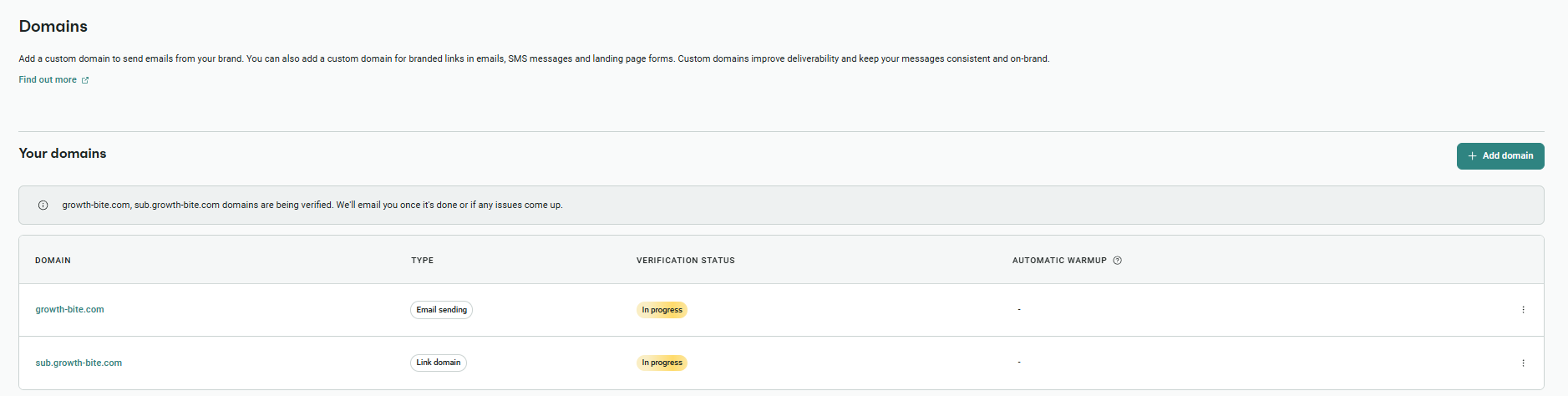
Unfortunately, the wait will take a bit longer than 15 minutes as DNS servers take anywhere from 24 to 48 hours to propagate. There’s not a lot you can do here to speed up the process.
Step 1 — Verify your custom sending domain
As previously mentioned, without email sender authentication, Omnisend (and any other email service provider) will sign your emails with a placeholder such as “soundest.email”. That soundest.email domain is Omnisend’s own shared sending address (a leftover from Soundest, the brand Omnisend launched as), so it’s not a red flag – just a sign you haven’t verified your own domain yet. Adding your custom domain and implementing the necessary email authentication protocols will fix the issue:
- In your Omnisend dashboard, go to Store Settings, then click Domains.
- Click Add domain, and select Email as the domain type.
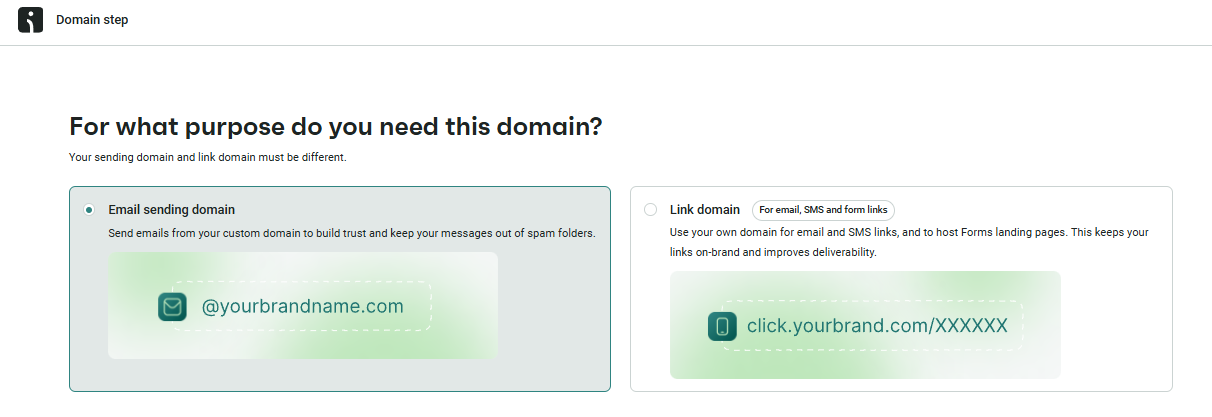
3. Select your domain provider and enter your sending domain, root (yourdomain.com) or a subdomain (send.yourdomain.com). Free email addresses (@gmail, @yahoo, etc.) are blocked.
4. Click Continue to move on to the DNS records screen.
You’ll now see a list of all the DNS records that need to be added. We’ll tackle them one by one.
Step 2 — Add the SPF record to your DNS
Add the SPF record listed in the menu. Unless anything has changed, it should be:
v=spf1 include:mailgun.org ~all
You may be confused about the domain, as Mailgun doesn’t seem to be associated with Omnisend. They’re our underlying sending infrastructure upon which the software features of our product have been built. Since the SPF record is for servers, it has to point to them, not the upper software layer.
Many guides on the internet will tell you that you should always merge, not add, SPF records, otherwise it may break email authentication entirely. Omnisend is one step ahead – if our system detects another SPF record, we automatically merge them and give you the one you need to paste into DNS.
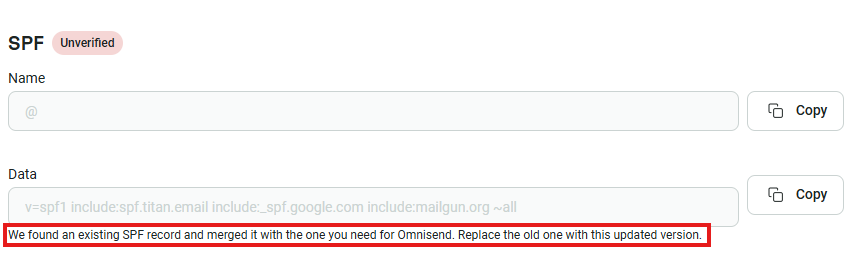
- Log in to your DNS provider (Cloudflare, GoDaddy, Namecheap, etc.) and navigate to the DNS records section. Some providers may have these listed under “Email” or “Authentication” as well, so be sure to check those settings as well.
- If no SPF record exists, simply add the new TXT record at the root of your domain with the values provided by Omnisend.
- If an SPF record exists, ensure that the combined Omnisend record does include your previous data. A key indicator is if there’s more than just the basic value (see table above).
- If an SPF record exists and somehow it has not been automatically merged, simply add “include: mailgun.org” between “include: [previous value]” and “~all”.
- Save the record.
Don’t close the tab or leave the screen just yet. It’s likely that you’ll be using it for the next step.
Step 3 — Add the DKIM TXT record to your DNS
Take the values seen in the Omnisend domain authentication screen and add them to your hosting provider settings.
If you haven’t left the previous screen in your hosting provider, you’ll likely find them in the same place or close by.
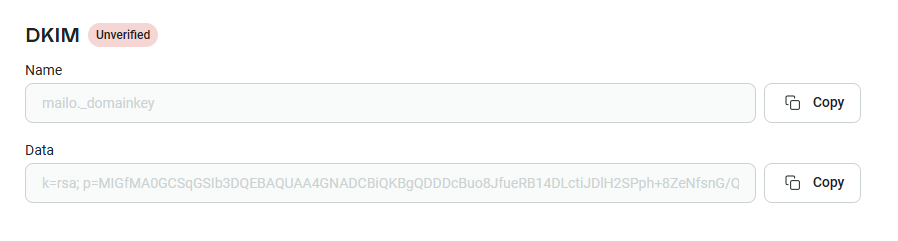
One key thing to remember is that the “p=” values are unique to each domain, so they must be copied exactly as a single string. Do not split them manually, add spaces, or modify in any way. Some hosting providers may split them – that is fine since they use RFC-compliant methods to ensure that the DKIM settings still work.
Step 4 — Create your DMARC record
One final step before the wait begins – adding the DMARC record. Omnisend’s default is the following:
To set the DMARC record, take these steps:
- Open your hosting provider and find the associated settings. These are usually found under sections like “DNS”, “DNS Records”, and “Advanced DNS”.
- Add a new TXT record with the _dmarc subdomain and the default record listed above.
- Save the record.
Omnisend’s default DMARC record is a minimalist one. You can add an additional setting to it, called rua, if you want to get aggregate reports on email sends.
Change the email to one where you can receive the reports.
Another key note is the default “p=none” setting. That’s a monitoring starting point and the minimum policy required by Gmail, Yahoo, and Microsoft. Escalate to “quarantine” and eventually “reject” only when reports confirm that legitimate senders are going through as expected.
Step 5 — Confirm authentication status in Omnisend
Once all your records are published, return to the Omnisend dashboard to verify everything is in order:
- Go to Store Settings, click on Domains, and select your domain.
- Check the authentication status panel. All three should be marked in green.
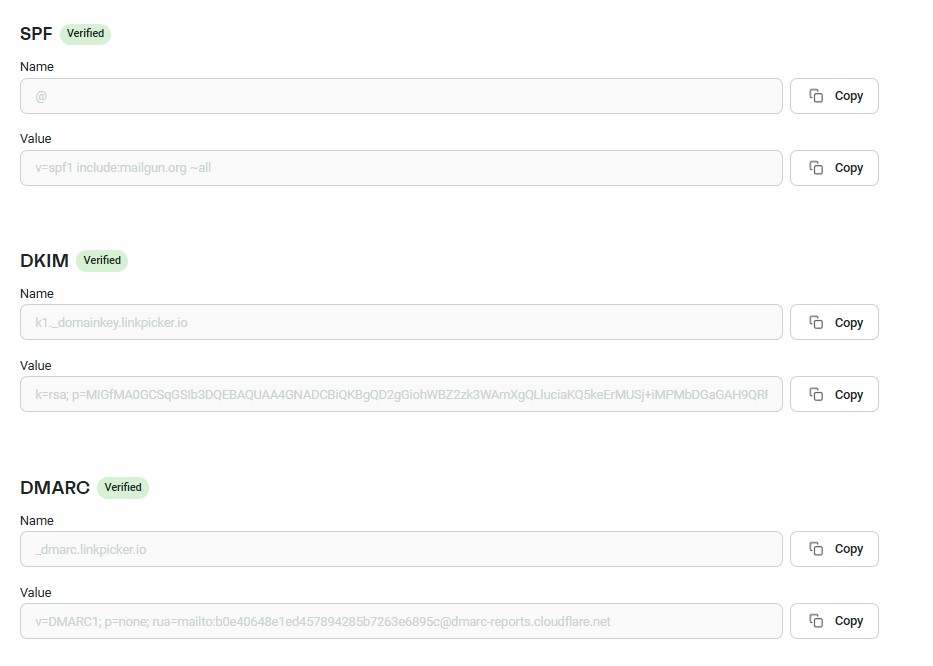
You can also send a test campaign to a personal Gmail just to make sure everything is in order and warm up your email domain a little.
Domain authentication is included on every Omnisend plan, including the free tier — start your store today
Quick sign up | No credit card required
Fix the “via soundest.email” warning in Gmail
If you encounter the warning, that means DKIM email authentication is not working correctly. The warning appears when the sending domain in the DKIM does not match the domain in the “From:” field. These are the mismatches that DMARC and other email authentication protocols are intended to catch.
To fix the error, you should follow the steps outlined above. Try focusing on these three first:
- Verify a custom sending domain in Omnisend
- Publish SPF, DKIM, and DMARC records on your DNS servers
- Confirm verification status in the Omnisend dashboard
Omnisend’s authentication status panel shows pass/fail at a glance for SPF, DKIM, and DMARC — once all three are green, the via warning disappears.
DNS propagation: how long does authentication take?
Anywhere from 24 to 48 hours. Usually, the process does happen quite a bit quicker – modern hosting providers such as Namecheap and Cloudflare propagate in under an hour. Standard hosts (GoDaddy, Google Domains) take 1-24 hours. Legacy registrars can take up to 48 hours.
It’s important not to make additional changes within these windows. You could unintentionally change a perfect DNS record change that hadn’t propagated yet.
| DNS host type | Typical propagation time | Example providers |
|---|---|---|
| Modern DNS | Under 1 hour | Cloudflare, Namecheap |
| Standard DNS | 1–24 hours | GoDaddy, Google Domains |
| Legacy DNS | Up to 48 hours | Older registrars, corporate DNS |
You can use tools like MXToolbox or Mail-tester to query your DNS records if you want to be perfectly sure everything is set up correctly.
Advanced setup: two-domain strategy for ecommerce
Marketing emails tend to generate more spam complaints and have higher unsubscribe rates than transactional emails – after all, people always expect the latter since they happen after an action has been taken. You want to keep the sender reputation of both of them separate, so in case marketing emails come under fire, it doesn’t harm your ability to send transactional emails.
A customer not receiving a marketing email is a mild annoyance to you. A customer not receiving order confirmation can generate a support ticket, chargeback risk, or even a refund request.
A simple solution: send one from your root domain (e.g., yourstore.com) and one from a subdomain (info.yourstore.com). They’ll basically look identical to your subscribers, but email infrastructure treats them as different “From:” domains.
| Domain | Use for | Reputation benefit |
|---|---|---|
| Root (yourstore.com) | Marketing campaigns, newsletters | Builds your brand domain reputation directly |
| Subdomain (send.yourstore.com) | Automated flows, transactional emails | Isolates the flow reputation from the campaign sending |
Just make sure to set up email domain authentication for both the root and the subdomain. Otherwise, at least one of them will run into email authentication protocol issues like the dreaded “via soundest.email” warning.
BIMI email authentication: add your logo to authenticated emails
BIMI (Brand Indicators for Message Identification) displays your brand logo next to your inbox when email authentication is finalized. It’s not a separate protocol, more of an additional payoff for getting SPF, DKIM, and DMARC email domain authentication correctly.
Most top-tier email providers support it – Gmail, Yahoo, Apple Mail, AOL, Fastmail, to name a few.
Publishing a BIMI email authentication record is easy, as long as you’ve followed the previous steps:
- Raise the DMARC to at least “p=quarantine” as the default policy, as none doesn’t qualify.
- Get a logo certificate to prove you actually own the logo trademark.
While publishing is easy, BIMI certificates are unfortunately not free. There are two options you can go with: VMC or CMC.
| Certificate | Approx. cost | Trademark required | Supported by |
|---|---|---|---|
| VMC | $1,500–2,000/year | Yes — registered trademark | Gmail, Yahoo, Apple Mail, AOL, Fastmail |
| CMC | Lower (~$1,000/year) | No — 12+ months logo use | Gmail (added 2025); other providers TBC |
Google recently (in 2025) added the CMC certificate, which greatly reduced entry costs. While the sticker price may seem close, getting a registered trademark can take one to two years and can cost more than the VMC certificate itself.
BIMI authentication doesn’t work with Microsoft-owned email providers, and there’s no announced timeline yet. That’s one of the drawbacks of BIMI, but it’s a relatively small one in the grand scheme of things.
Frequently asked questions
How do I authenticate my email domain?
Publish three records on your DNS: SPF, DKIM, and DMARC. Your email service provider will provide the exact values to publish. DNS record propagation may take 1-48 hours fully, so give it some time once published.
What is the difference between SPF, DKIM, and DMARC?
SPF records tell receiving servers which email servers are authorized to send mail on your behalf. DKIM adds a cryptographic signature that lets receivers verify that the message wasn’t tampered with. DMARC is a policy that ties the previous two together, telling receiving servers what to do with messages that fail those checks – let them through, send them to spam, or block them outright.
Why is Gmail showing a “via” warning on my emails?
Gmail shows the “via” warning when the DKIM email authentication protocol can’t match the visible “From:” address with the one in the DKIM file. For example, if you send through Omnisend without setting up your verified custom sending domain, the “From:” field will show your own domain while Omnisend will have signed with “soundest.email”. The fix is verifying a custom sending domain in Omnisend so DKIM signs correctly.
How long does email domain authentication take to work after I add the DNS records?
DNS propagation typically takes 1-48 hours, with most modern hosts like Cloudflare and Namecheap taking less than an hour. The 48-hour timeline is more so for legacy registrars.
Do I need authentication if I send fewer than 5,000 emails/day?
Technically, no, since the mandatory requirements are for those who send more than 5,000. But every sender benefits from email domain authentication; without it, your emails have a greater chance of landing in spam, may be sent with a warning to recipients, and you get no protection from spoofing. Since setting up SPF, DKIM, and DMARC takes 15 minutes or less, there’s no reason not to do it.
What is DMARC alignment, and why does it matter for Omnisend users?
DMARC alignment requires the visible From: domain to match either the SPF domain or the DKIM signing domain. SPF and DKIM can both pass while still failing alignment — which is exactly what triggers Gmail’s “via soundest.email” warning for Omnisend users without a verified custom domain. Verifying your domain in Omnisend fixes alignment by signing DKIM against your domain instead.