6 Social Media Agency Workflows You Can Automate With Claude
Somewhere in your Notion or a folder of old Loom recordings, your social media agency SOPs already exist. You wrote the client onboarding checklist. You documented the approval process. You have a doc that says exactly how a report gets built. None of that is the problem.
The problem is that you’re still the one running most of it by hand. You’re still pasting the same caption into six different tabs. You’re still following up with a client who hasn’t approved a post in four days. You’re still building the report yourself late in the evening because nobody else knows exactly how you like it formatted.
That is not a training problem you fix with a better document. It is a structural one, and it is a big part of why 97% of marketing leaders now say knowing how to use AI in their day-to-day work is essential.
This is not another argument for why you need SOPs. You already have them. What follows are the 6 workflows worth building first, the exact steps for each one, and precisely where Claude and SocialPilot take the manual part off your plate.
Before You Automate, Know What Your AI Agent Can and Can’t Own
Before you hand any part of your work to Claude, sort three things:
- Create your social media style guide (colors, fonts, tone of voice)
- Your operations playbook (who owns which client, how work moves from brief to publish, what your social media workflow looks like)
- Your task-level SOPs, the individual steps underneath both.
Every social media management SOP in this piece lives at that third layer.
Once that’s sorted, the real question is where Claude’s authority starts and stops. Workflows that follow a similar set of rules, like scheduling and routing an approval, can be completely automated, but steps that require context and judgment, will require some manual intervention.
To understand this better, here’s an honest breakdown of what Claude can and cannot do.
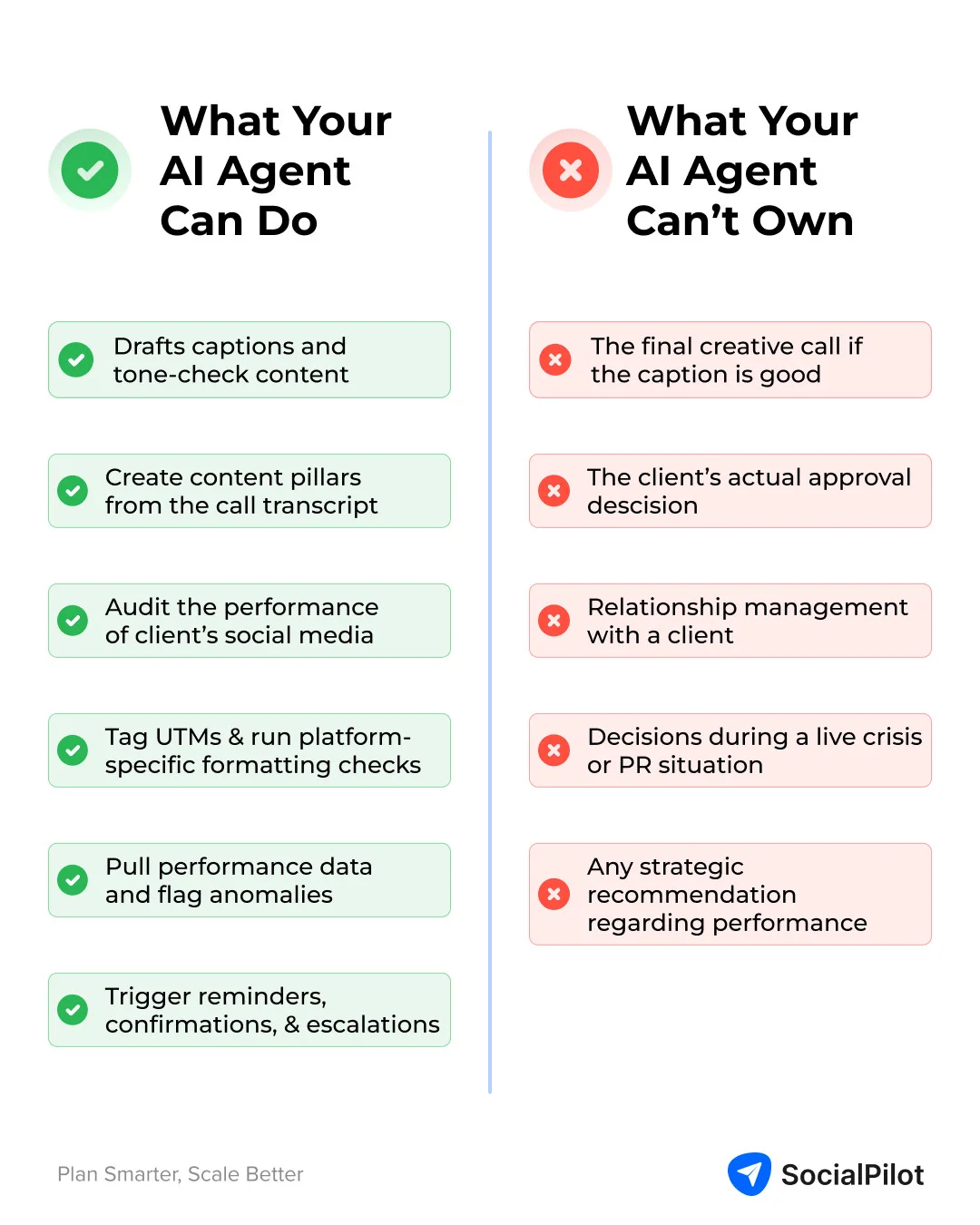
What Your AI Agent Can Do
- Draft captions from a brief and tone-check them against stored brand guidelines.
- Turn a messy kickoff call transcript into a first draft of content pillars, so a person is editing instead of starting from scratch.
- Audit a client’s existing social presence and summarize posting cadence and past performance.
- Tag UTMs on every post and run platform-specific formatting checks before content goes live.
- Pull raw performance data from GA4 and GSC, write the narrative, and flag anomalies
- Trigger reminders, confirmations, and escalations at each step of a workflow, and compile handover documents when a client leaves.
What Your AI Agent Can’t Own
- The final creative call on whether a caption is actually good, not just technically on-brand
- The client’s actual approval decision, since that call belongs to them
- The relationship management with a client, including any conversation about results
- Any decision made during a live crisis or a real PR situation
- The strategic recommendation that comes out of a performance conversation
Also, stats suggest that 69% of social media users are now comfortable with brands relying on AI to deliver them faster, more personalized care. This means the resistance that you may be still picturing is smaller than it feels.
The connector making all of this possible is MCP, short for Model Context Protocol. It is what lets Claude read and act inside tools like Notion, Slack, and SocialPilot directly.
Here is how that stack breaks down across the 6 workflows below.
| Tool | What It Owns |
| Notion MCP | Briefs, calendars, asset submission, feedback loops, report drafts |
| SocialPilot MCP | Multi-account scheduling, UTM tagging, approval routing, white-label reporting |
| Slack MCP | Reminders, escalation routing, delivery notifications |
| GA4/GSC API | Performance data pulls |
| Claude | Drafting, tone-checking, audits, anomaly detection, narrative generation |
1. Client Onboarding SOP
Onboarding is usually the first of your social media agency processes to break down under volume, because it is the one step you repeat with every new client while everything else about that client is still unfamiliar to your team.
The SOP steps:
- Client signs a contract and the engagement officially starts.
- Send the asset collection form (logo, brand colors, tone of voice, do and don’t examples) the same day.
- Set up the client’s account in your scheduling tool before content creation begins.
- Audit their existing social presence to see what has and has not worked so far.
- Draft content pillars based on the kickoff call, turning the conversation into themes
- Build the first month’s calendar and get it signed off before anything publishes
What to automate with Claude:
1. Trigger the asset collection form the moment the contract is signed, so nobody has to remember to send it manually. Claude watches for the signed-contract update through the Notion MCP connection and fires the form automatically instead of you setting a personal reminder for it.
2. Have Claude scrape and summarize the client’s existing social presence, posting cadence, and recent performance into a one page audit.
You are helping a social media agency onboard a new client. I need a one-page social media audit of [CLIENT NAME]’s existing presence before we start managing their accounts.
Here are their profiles:
– Instagram: [URL/handle]
– Facebook: [URL/handle]
– LinkedIn: [URL/handle]
– X/Twitter: [URL/handle]
– TikTok: [URL/handle]
(delete any platform that doesn’t apply)
For each platform, look at their most recent 15-20 posts and tell me:
1. Posting cadence: how often they post, and whether it’s consistent or sporadic
2. Content mix: what type of content shows up most (product, behind-the-scenes, promotional, educational, user-generated, etc.) and roughly what share each type makes up
3. Tone and voice: how they currently sound (formal, casual, playful, corporate) so we can match it or flag where it needs to shift
4. What’s working: their 3 highest-engagement posts and a guess at why they performed well
5. What’s not working: their 3 lowest-engagement posts, or any obvious gaps like inconsistent posting, missing CTAs, no hashtag pattern, or inconsistent visuals
6. Cross-platform consistency: does the brand look and sound the same everywhere, or does each platform feel like a different account
Then summarize it as a one-page audit with these sections:
– Current state (2-3 sentences)
– Platform-by-platform snapshot (one line each: cadence, content mix, tone)
– Top 3 strengths to keep doing
– Top 3 gaps to fix in month one
– A first-pass content pillar suggestion based on what’s already resonating
Keep the whole thing to one page. Write it for the account manager who will use it to plan the first month’s calendar, not for the client to read directly.
Since Claude can read directly from the web and from anything you drop into the workspace, it puts this baseline together in minutes instead of the hour or two it usually takes to click through every platform by hand.
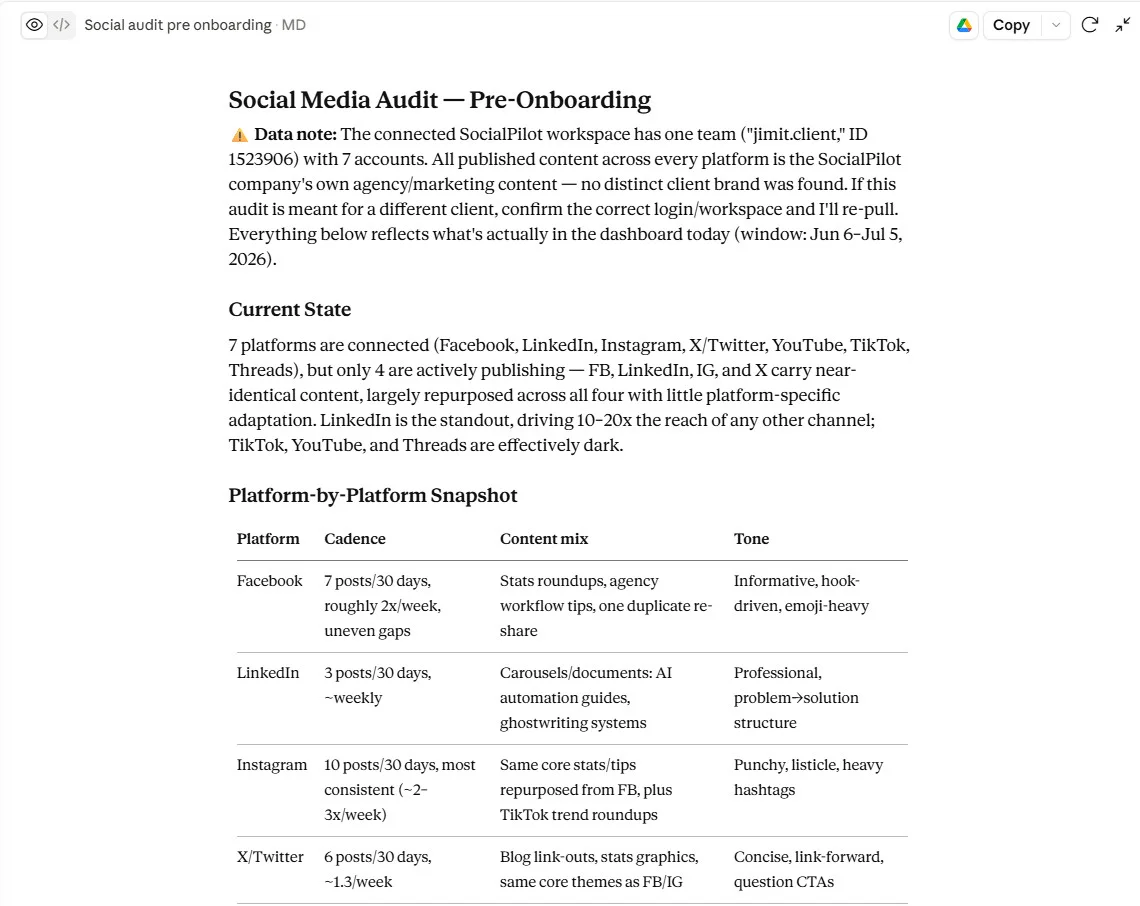
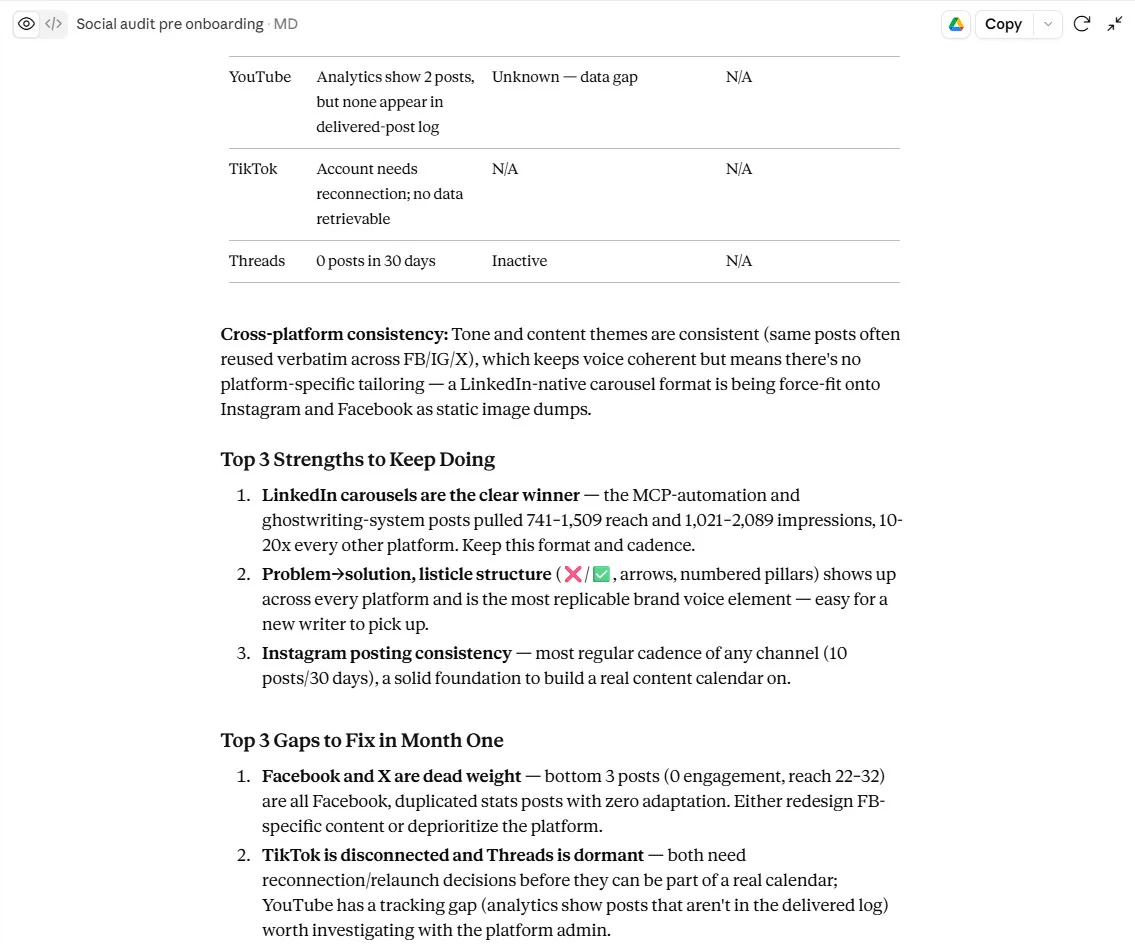
We tried running this command for SocialPilot, and here is the result produced by Claude:
3. Turn the kickoff call transcript into a first draft of content pillars, so you are editing instead of starting from nothing. Feed Claude the raw recording or transcript and it pulls out the themes the client actually talked about, which removes the blank-page problem entirely.
Here’s a first draft of content pillars from our kickoff call with [CLIENT NAME].
[PASTE TRANSCRIPT OR CALL NOTES]
From this transcript, pull out:
1. The 3-5 recurring themes the client kept coming back to (their product or service, their audience’s pain points, what they said makes them different from competitors)
2. Any specific goals they mentioned (leads, awareness, community, sales) and which theme each one maps to
3. Any content ideas, examples, or competitors they referenced directly, quote it if it’s a strong line worth keeping
4. Anything they explicitly said not to post about or discuss
Turn that into 3-5 content pillars. For each one give me:
– A name (2-4 words)
– A one-sentence description of what it covers
– Why it matters to this client specifically, tied back to something they actually said on the call
– 3 example post ideas under that pillar
Keep it a working draft, not a polished deck. This goes to the account manager to edit and build the first month’s calendar around, not to the client.
What stays human:
- The kickoff call itself
- Signing off on brand voice
MCPs/tools: Notion MCP holds the workspace and the brief, Claude handles the audit and the first pillar draft.
2. Content Creation and Approval SOP
This SOP covers content your team creates and sends out for the client’s sign off. The next workflow in this piece covers the opposite direction, assets and feedback coming in from the client, so keep the two separate even though both involve the word approval.
Before either can run smoothly, you need a repeatable content calendar system that already has the client’s monthly themes mapped out.
The SOP steps:
- Pull the brief from the content calendar for the week ahead
- Draft captions per platform, matched to each platform’s format
- Tone-check against brand guidelines before anyone else sees it
- Internal review by a second person on your team
- Route to the client for approval once internal review is done
- Mark approved and move to the scheduling queue
What to automate with Claude:
1. Draft captions straight from the brief. Claude reads the brief stored in Notion and writes a first version in the format each platform needs, which a person then edits instead of writing from scratch.
Read through this week’s content brief for [CLIENT NAME] from Notion:
Write a first-draft caption for each platform in the brief, matched to its format:
– Instagram: caption plus a line break before 3-5 relevant hashtags
– LinkedIn: no hashtag block, professional tone, can run longer
– X/Twitter: under 280 characters, 1-2 hashtags at most
– Facebook: conversational, can include a question to prompt comments
(delete any platform that doesn’t apply)
For each caption, add a one-line note on the hook you used and why, so the reviewer can judge fit before reading the whole thing.
These are first drafts for internal review, not final copy. Keep the client’s established tone in mind if I’ve shared brand guidelines with you separately.
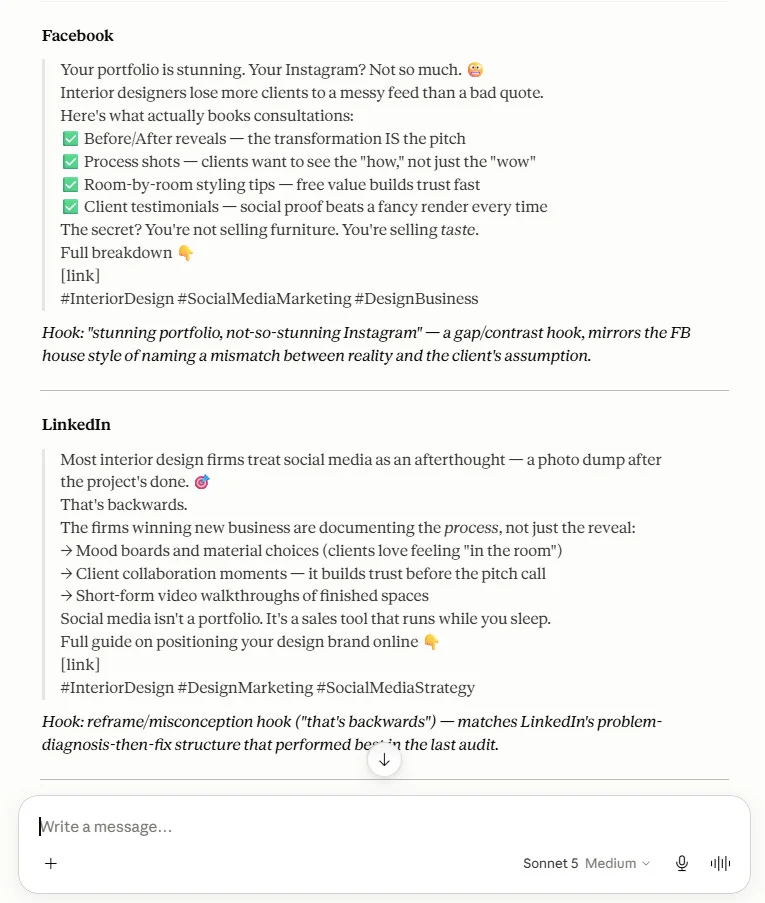
Claude will then produce a first draft caption for each platform based on that week’s client brief in notion
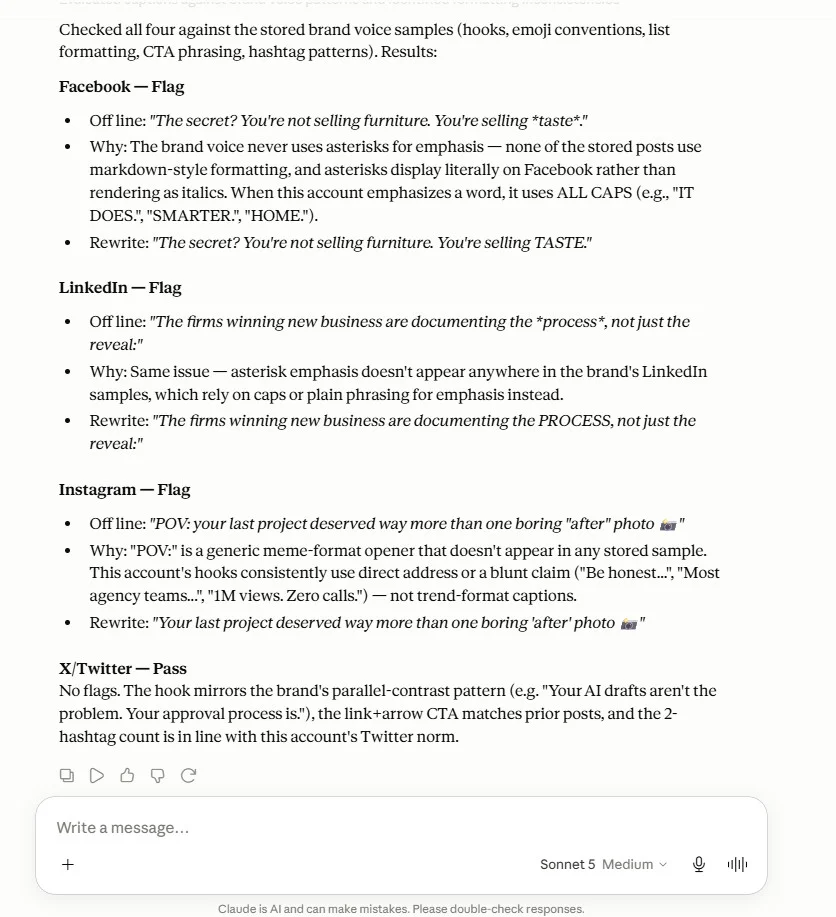
2. Tone-check every draft against the brand guidelines you already have stored. Since those guidelines live in the same workspace Claude has access to, it can flag a caption that drifts from the client’s voice before an internal reviewer ever sees it.
Check the above draft captions against the stored client’s brand guidelines:
For each caption, tell me:
1. Pass or flag: does it match the brand voice or not
2. If flagged, the exact phrase or line that’s off, and why
3. A rewritten version of just that line, not the whole caption
Don’t rewrite anything that already passes. I only want to spend review time on what’s actually off.
Claude will analyze the draft and flag everything that’s off, while also giving you the rewritten version of the off-brand sentences
3. Trigger the approval routing automatically the moment internal review is marked complete. Claude watches for that status change and routes the post straight to the client through SocialPilot MCP, so nobody has to remember to forward it.
These captions for [CLIENT NAME] have passed internal review and are ready for the client:
[PASTE FINAL CAPTIONS, ONE PER PLATFORM]
Send these into SocialPilot’s built-in [Client Name] approval queue. Include only the final caption text, not the internal notes or tone-check feedback.
Confirm back to me once this batch has moved out of internal review and into the client’s queue.
This is exactly where SocialPilot’s Approvals On-The-Go feature comes in. Once a post lands in the client’s queue, they get a link that opens straight to that post, no login required, and they can approve, comment, or send it back for a fix from their phone.
What stays human:
- The final creative review
- The client’s actual approval decision, since that call belongs to them, not to a model
MCPs/tools: Notion MCP holds the brief and calendar, Claude drafts and tone-checks, SocialPilot MCP routes the approval once it is ready.
3. Batch Scheduling and Publishing SOP
This is the workflow most people actually mean when they ask how to automate social media posts, and it has the clearest, fastest payoff because every step after “content is approved” is mechanical.
The SOP steps:
- Pull approved content from the queue once it clears the previous SOP
- Add UTM parameters to every post so traffic stays trackable
- Format for each platform (copy length, hashtags, image specs)
- Bulk schedule across every client account in one pass
- Final human review before the publish window opens
- Publish
What to automate with Claude:
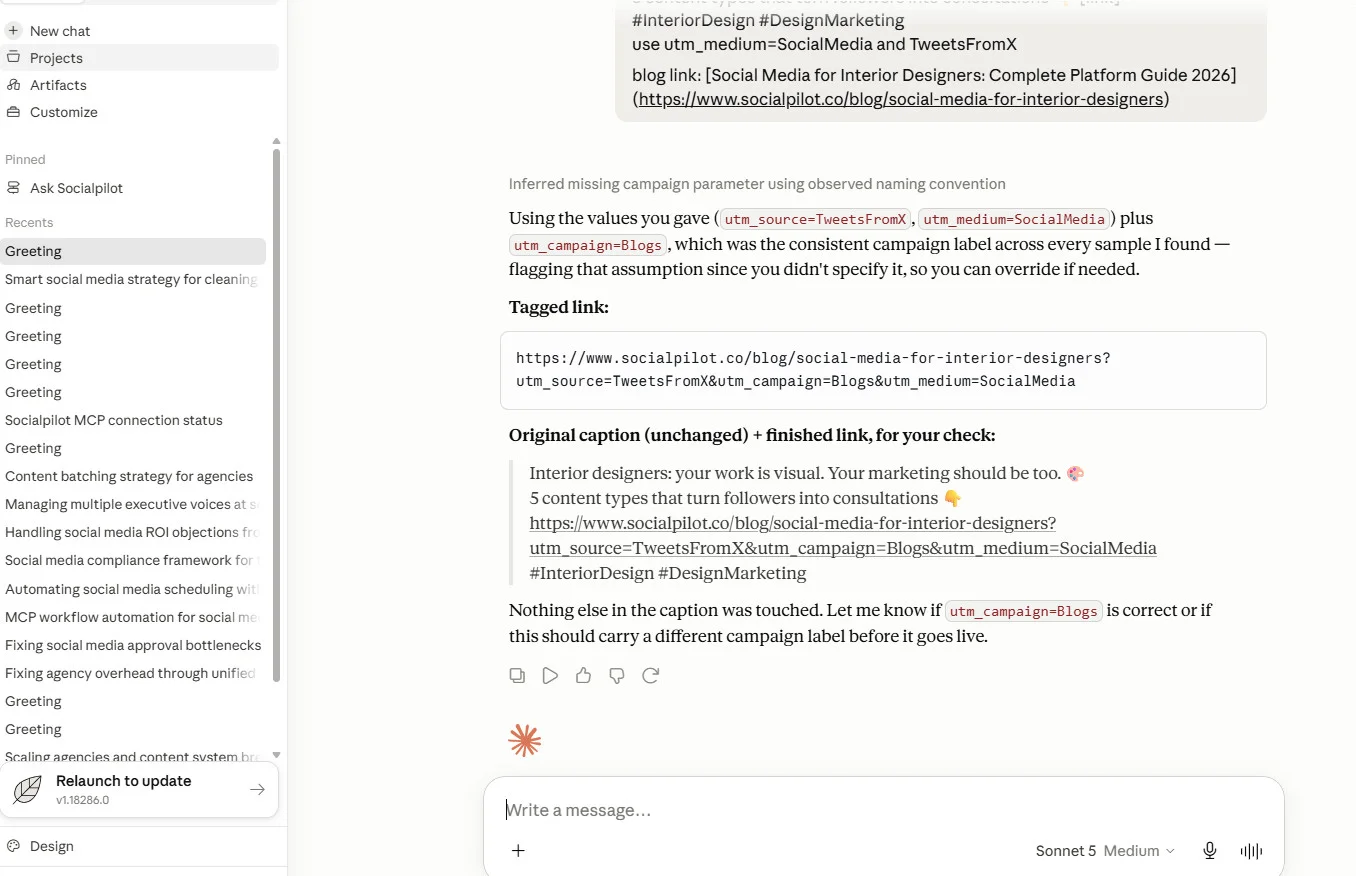
1. UTM tagging on every post, so nobody forgets and a client’s traffic goes untracked. Claude appends the correct campaign parameters to every link automatically, using the naming convention you set once at the start.
Here are this batch’s approved posts for [CLIENT NAME], ready to schedule:
[PASTE APPROVED POSTS WITH THEIR LINKS, ONE PER PLATFORM]
Our UTM naming convention is:
[PASTE YOUR CONVENTION, e.g. utm_source=[platform]&utm_medium=social&utm_campaign=[campaign name]]
Add the correct UTM parameters to every link in this batch, following that convention exactly. Don’t touch any other part of the post. List the finished links back to me next to the original caption so I can do a final check before scheduling.
Claude will then add the UTM parameters to the link and give you a finished link that you can review.
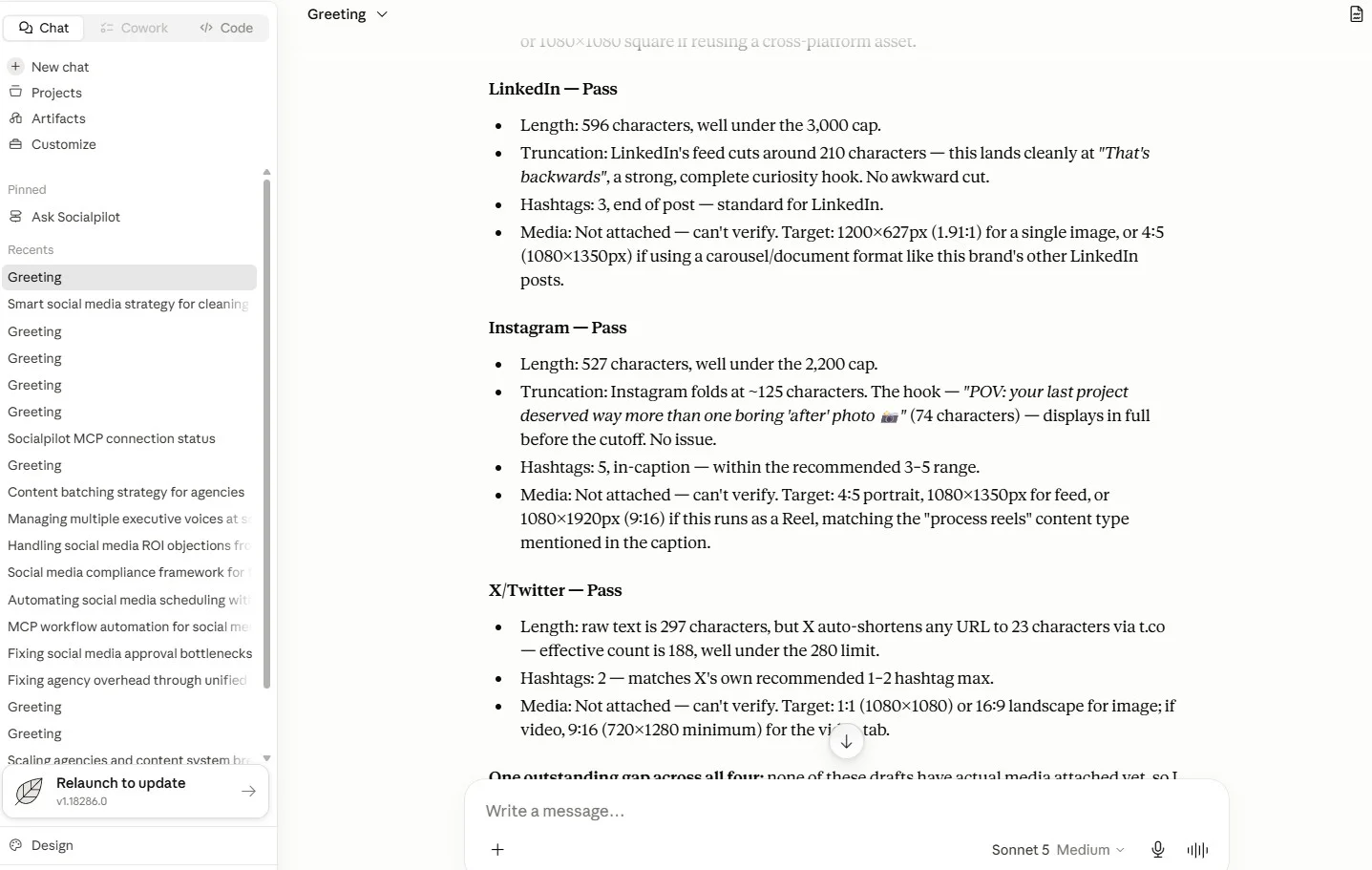
2. Platform-specific formatting checks, so a caption written for LinkedIn does not go out on Instagram unedited. Claude checks copy length, hashtag placement, and image specs against each platform’s requirements before anything moves into the queue.
Here’s this batch of posts for [CLIENT NAME], tagged and ready for a formatting check before scheduling:
[PASTE POSTS, ONE PER PLATFORM, WITH THE PLATFORM LABELED]
Check each one against that platform’s actual limits and conventions:
– Copy length (does it get cut off or look awkward if truncated)
– Hashtag placement and count (in the caption vs. first comment, too many vs. too few)
– Image or video specs (aspect ratio, resolution, length, matches what that platform expects)
For each post, tell me pass or flag. If flagged, fix it directly, don’t just point it out.
After this prompt, t would either flag or pass the posts based on their copy length, hashtag placement and image specs.
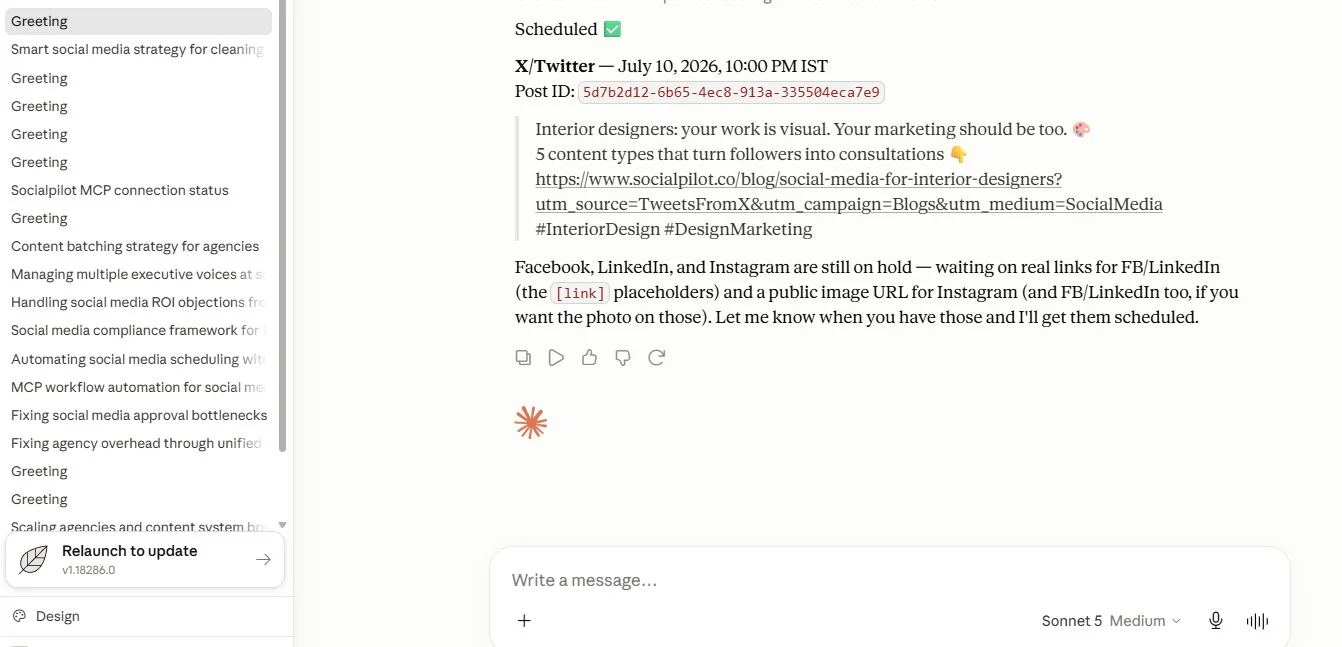
3. Bulk scheduling across every client account at once instead of one platform at a time. Once formatting is confirmed, Claude hands the batch to SocialPilot MCP to schedule everything in one pass instead of you doing it account by account.
This batch of posts for [CLIENT NAME] has passed the formatting check and is ready to go out:
[PASTE FINAL POSTS, ONE PER PLATFORM, WITH THE INTENDED PUBLISH DATE AND TIME FOR EACH]
Schedule every post in this batch across [CLIENT NAME]’s connected accounts in [YOUR SCHEDULING TOOL] at the times listed, in one pass rather than one platform at a time.
Confirm back to me once the whole batch is scheduled, and flag anything that didn’t go through cleanly.
Claude then schedules all the posts to the connected client’s accounts on your mentioned date and time.
What stays human:
- One final look at the schedule before the publish window opens, since a mistake at this stage is the one that actually reaches the client’s audience
MCPs/tools: SocialPilot MCP owns the scheduling, the UTM tagging, and the multi-account publishing, Claude runs the formatting checks before anything goes live.
SocialPilot’s bulk scheduling lets you load every client’s approved posts into one calendar and publish across every account without opening each platform separately.
4. Client Reporting SOP
Reporting is the SOP most agencies already know is a manual mess, because it is the one task that touches the most tools before it ever reaches a client’s inbox: GA4, Search Console, and whatever native analytics each platform happens to show that week. If your agency still creates social media reports from scratch before automating any of it, that’s worth reading alongside this workflow.
The SOP steps:
- Pull performance data from GA4, GSC, and platform analytics
- Summarize performance against the client’s specific KPIs
- Flag anomalies (traffic drops, engagement spikes) before they get buried
- Generate the formatted report from your template
- Deliver it to the client on the schedule you promised
What to automate with Claude:
1. Pull the raw data from GA4 and GSC directly, instead of logging into three separate dashboards yourself. Claude connects to both through their reporting APIs and pulls exactly the metrics your report template needs, on demand.
Pull this month’s performance data for [CLIENT NAME] from GA4 and Search Console.
From GA4, I need:
[YOUR TEMPLATE’S METRICS, e.g. sessions, users, engagement rate, conversions, top landing pages, traffic by channel]
From Search Console, I need:
[YOUR TEMPLATE’S METRICS, e.g. clicks, impressions, average position, top queries]
Date range: [START DATE] to [END DATE]
Pull exactly these metrics, nothing extra, and format them into a simple table I can drop straight into the report template.
Note: This prompt works only if you have GA4 and Search Console connected to Claude. If not, export the data from each and paste it instead of asking Claude to pull it live.
2. Write the performance narrative and flag anomalies worth a second look. Claude compares this month’s numbers against the client’s usual range and calls out anything that moved more than expected, instead of you scanning a spreadsheet by eye.
Pull [CLIENT NAME]’s data for this month (1st to 30th June 2026).
Then pull last 3 month’s of their data (1st March to 30th May), for comparison.
Write a short performance narrative: what moved, by how much, and whether that’s normal for this account. Call out anything that moved more than [YOUR THRESHOLD, e.g. 20%] in either direction as an anomaly worth a second look, and give a one-line guess at why.
Keep the narrative to a few short paragraphs, written for the client to read directly, not internal notes.
3. Generate the report and send it on the schedule you set once, not the schedule you remember each month. Claude assembles the report inside Notion, and Slack MCP pings you the moment it is ready to review before it goes out.
Take the performance narrative and data table from above and drop them into [YOUR REPORT TEMPLATE OR TOOL, e.g. a Notion page, a Google Doc, a report builder], following our usual report format. Let me know as soon as it’s ready to review, through [WHERE YOU WANT THE NOTIFICATION, e.g. Slack, email].
Don’t send it to the client yet, this still needs my review first.
What stays human:
- The actual conversation with the client about what the numbers mean
- Any strategic recommendation that comes out of that conversation
MCPs/tools: the GA4/GSC API supplies the raw data, Claude writes the narrative and flags anomalies, Notion MCP holds the report draft, Slack MCP delivers the internal reminder, and SocialPilot MCP produces the white-label version the client actually sees.
If you have not automated your white-label social media reporting yet, this exact workflow will help you scale reporting without increasing your manual workload.
5. The Client-Side SOP Most Agencies Never Build
The Content Creation and Approval SOP above covers what happens after your team makes something. This one covers the opposite direction: what happens when the client is the one who owes you something. Almost no agency documents it, which is exactly why it becomes the biggest bottleneck nobody planned for.
The SOP steps:
- Client submits assets through one defined channel, not email
- Agency reviews the assets against the original brief
- One feedback round, with a defined turnaround window attached
- Client approves the final version
- Assets get handed to the content team for scheduling
What to automate with Claude:
1. Trigger a confirmation the moment assets come in through that channel. Claude watches the submission channel and sends an automatic acknowledgment so the client knows their file was actually received.
Here’s how you can build it:
- Route all client submissions through one defined channel, like a Notion form
- Set up a trigger on that channel to fire the moment a new item lands, using its native automation or a connector like Zapier
- Point that trigger at Claude via the API, passing along the submission details
- Give Claude a standing instruction to confirm receipt, name the file, and note the review timeline.
- Send Claude’s reply back through the same channel or wherever the client is watching.
2. Send a turnaround reminder automatically if there is no response inside the window you set. A scheduled check runs against every open request’s stored deadline, not a one-time trigger, and the moment one is still unanswered as that window closes, Claude nudges the right person through Slack MCP before the deadline quietly passes.
3. Route an escalation if a deadline gets missed entirely. The same scheduled check flags any request still open past its full deadline, and Claude routes it straight to whoever owns that client’s account instead of the request sitting unanswered.
What stays human:
- The actual relationship management with the client
- Any decision about an urgent, last-minute change
MCPs/tools: Notion MCP handles the asset submission and the feedback loop, Slack MCP sends the reminders and escalations.
6. Client Offboarding SOP
Offboarding gets skipped in almost every agency’s documentation, right up until a client leaves on bad terms, and nobody remembers which accounts they still have access to.
The SOP steps:
- Notice received, log the end date immediately
- Audit every active account and every piece of access tied to the client
- Package and hand over all client assets
- Generate the final performance report
- Revoke every piece of account access
- Close the client workspace
What to automate with Claude:
1. Trigger the access audit automatically the moment notice comes in. Claude checks every connected tool and account against your master client list and flags anything still open that shouldn’t be.
We just received notice that [CLIENT NAME] is ending the engagement, effective [END DATE].
Pull the master client list from Notion showing what should be connected for them:
which tools, accounts, and access levels.
Check everything currently connected or granted for [CLIENT NAME] against that list and flag anything still open that shouldn’t be, extra logins, shared folders, ad accounts, anything left over from a past project.
Give me a checklist: what’s open, where it lives, and whether it needs to be revoked now or can wait until the handover is done.
2. Compile the full asset handover package. Claude gathers everything stored in that client’s workspace into one folder instead of you hunting through months of files by hand.
Now gather everything for the handover folder. Here’s where their assets live:
[YOUR LOCATIONS, e.g. Notion workspace, shared drive, content library, brand asset folder]
Pull together everything tied to this client, content calendars, brand assets, approved captions, past reports, into one organized handover package, grouped by type (assets, content history, reports, contracts) so whoever receives it can find things without digging.
List what you included, and flag anything you couldn’t access so I can grab it manually.
3. Draft the final report. Claude pulls the same performance data used in the regular reporting workflow above and turns it into a closing summary the client can keep.
Now put together their closing performance summary. Pull their performance data the same way we do for the regular monthly report:
[REFERENCE YOUR USUAL REPORTING TEMPLATE, e.g. GA4/GSC metrics, platform analytics, date range covering the full engagement or the last few months]
Turn that into a closing summary the client can keep: what was achieved over the engagement, the trend over time rather than just one month, and 2-3 highlights worth calling out. Keep the tone appreciative, not a pitch for future work.
What stays human:
- The exit conversation
- Handing off the relationship if the client is moving to someone new on your team
MCPs/tools: Notion MCP holds the handover, Claude drafts the final report.
3 Reasons Why Most SOPs Fail
Every workflow above only works if the SOP behind it is actually good. Mostly they aren’t. Isaac T. Cohen, an agency owner who writes about this in one of his LinkedIn posts, where he says that: “SOPs assume humans follow instructions. They don’t. They skim. They skip. They guess.”
Here are the three ways SOPs usually break, and they’re really just different versions of what Cohen is describing.
1. The SOP tries to do a person’s job. Something like “write an engaging caption” isn’t a step, it’s a wish. The real, doable steps are draft, tone-check, review. Whether the caption is actually good is still someone’s call, no document can make that call for them. Fix it by keeping only the mechanical steps in the SOP and leaving the judgment to a person.
2. Nobody owns it, so it goes stale. If no one person is responsible for an SOP, nobody updates it when a tool changes or a platform adds a new feature. Your team notices, and quietly stops trusting it. Fix it by giving every SOP one clear owner, who updates it the moment the process changes.
3. It lives somewhere nobody opens. A great SOP buried in a wiki nobody visits helps less than a rough one sitting inside the tool your team already uses every day. Fix it by connecting the SOP to the actual workflow, the way Claude and MCP do in every workflow above, so it runs on its own instead of waiting for someone to remember it.
It’s The Automation That Will Make Your SOPs Work
Automation doesn’t replace your SOPs. It’s what actually makes them run. Your brand guidelines, your operations playbook, and the SOPs underneath them only work once something is doing the mechanical parts for you, instead of leaving it to memory.
None of this replaces your judgment, your relationship with the client, or the calls only you can make in a real crisis. It just stops all of that from running through you by default. If scheduling and reporting are the two workflows eating up most of your week right now, SocialPilot is built to run both of them for you, so the SOPs you already wrote finally have a system behind them instead of just being a document that describes them.
Start by automating that one workflow that’s taking most of your time. Check out SocialPilot’s plans and pricing if you would wish to automate your scheduling and reporting workflows.